Security and 2-step sign-in
Settings › Security is where each person looks after their own sign-in: their password and 2-step verification (a code from an app on the phone after the password). Owners and principals also set the school's rule for which staff must use 2-step sign-in. Everyone with a staff account can open this page.
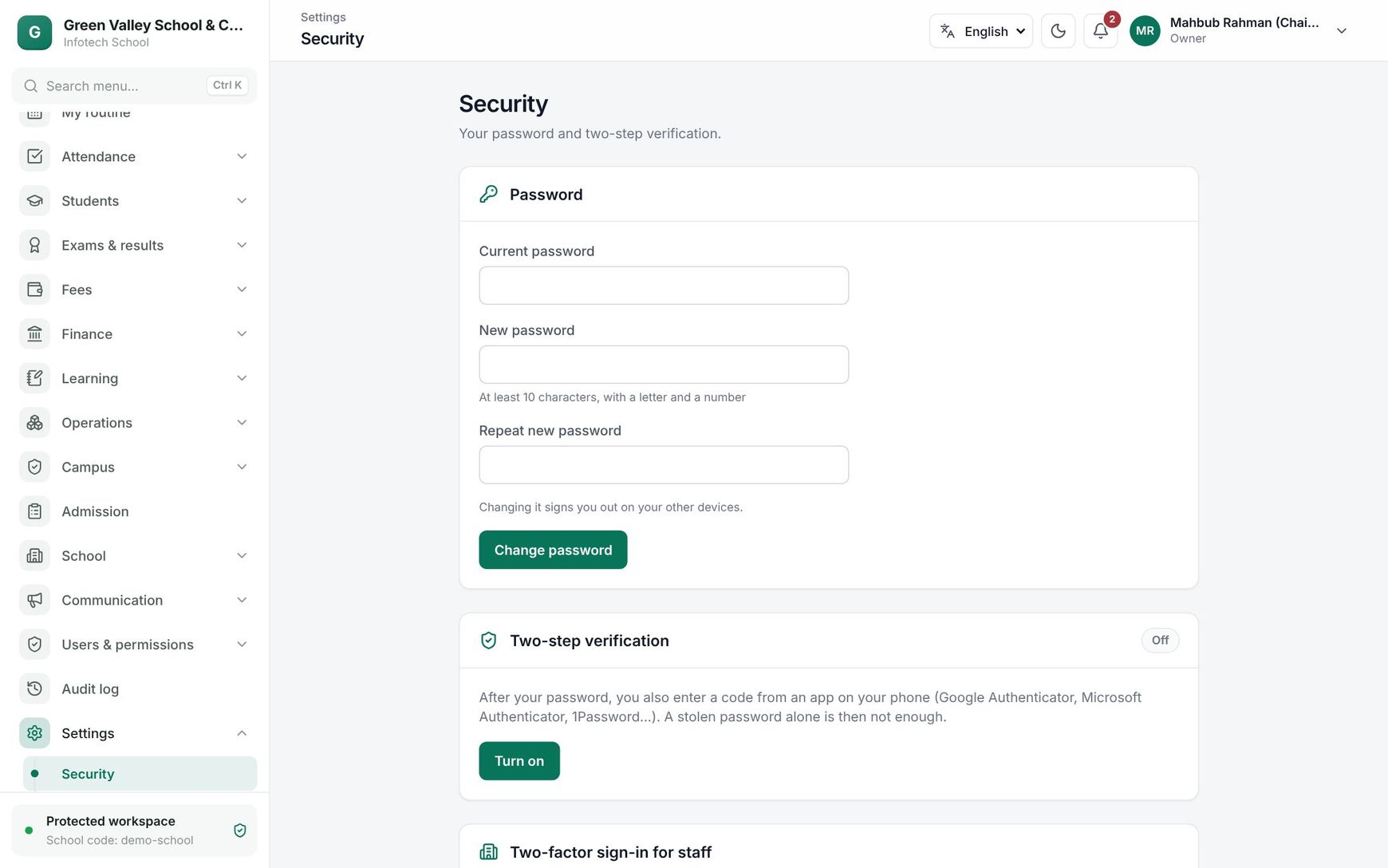 The Security page with the password, 2-step verification and the school's policy
Change your password
Under Password, fill in Current password, New password and Repeat new password, then choose Change password. A password needs at least 10 characters, with a letter and a number, and must differ from the current one.
Changing it signs you out on your other devices.
If an admin gave you a temporary password, the page says "Your admin gave you a temporary password. Choose your own to continue." You must change it before going on.
Turn on 2-step verification
With 2-step verification, a stolen password alone is not enough to get in. You need an authenticator app on your phone (Google Authenticator, Microsoft Authenticator, 1Password or similar).
- Under Two-step verification, choose Turn on.
- Scan the QR code with the app. If you cannot scan, type the key shown under Can’t scan? Enter this key:.
- Type the 6-digit code the app shows into Verification code and choose Confirm and turn on.
- You get 10 recovery codes. Choose Copy codes, keep them somewhere safe (not on the same phone), then choose I have saved them. They are not shown again.
From now on, after your password the sign-in page asks for the code from the app. If you lose your phone, type one of your recovery codes instead; each one works once.
Note: If you have lost both the phone and the recovery codes, ask an admin to use Reset 2-step on your account in Users. Then turn it on again.
Turn off 2-step verification
Choose Turn off, enter your Password and a Verification code (or a recovery code), and choose Turn off. If your school requires 2-step sign-in, the page says "Your school requires two-factor sign-in, so it stays on." and you cannot turn it off.
The school's rule: Two-factor sign-in for staff
People with tenant:settings (Owner, Principal) see a third card, Two-factor sign-in for staff.
| Choice | Who must use 2-step sign-in |
|---|---|
| Optional | Nobody; everyone chooses for themselves |
| Admins | Staff who can manage users or roles, change settings or integrations, or read the audit log. It also covers staff who can publish results, set up fees, approve waivers and refunds, or record expenses |
| Everyone | All staff of the school |
The card says how many people have not set it up yet. Choose Save changes; if anyone is affected, confirm at Require two-factor sign-in? with Require it.
What happens to someone who must but has not set it up: they can still sign in, but only the Security page opens, with the message "Your school requires two-factor sign-in. Set it up below to open the rest of the app." Once they turn it on, the rest of the app opens. This is checked by the server, not only the app.
Guardians and students are never asked: they sign in with an SMS code, which already needs their phone.
Sessions and signing out
- A wrong password or code counts as a failed try. After 5 failed tries the account is locked for 15 minutes.
- When you change your password, your other devices are signed out.
- When an admin resets your password or your 2-step, or disables your account, you are signed out everywhere.
- Changes to your roles reach your open session within 15 minutes, or at once when you reload.
- If someone tries to reuse a stolen sign-in, it is blocked and shows in the Audit log as "Stolen session blocked".
Sign-ins, failed sign-ins and every 2-step change appear in the Audit log (needs audit:read).
Example
Green Valley School's owner sets the rule to Admins. The card shows "2 people have not set it up yet". After Require it, the accountant Mahfuzur Rahman signs in the next morning and lands on Security. He scans the QR code, enters the code, saves his recovery codes in the office safe, and the rest of the app opens. Teachers are not affected; they may turn it on if they like.
Last updated 30 Oct 2026