Languages
Infotech School speaks three languages: English, Bangla (বাংলা) and Arabic (العربية). Each person picks their own, so the principal can work in English while the office assistant uses Bangla and a guardian in the Gulf reads Arabic. Arabic turns the whole screen right-to-left. Emails, notifications and SMS sent to a person are written in that person's language.
Change the language on the web
Use the Language menu in the top bar and pick English, বাংলা or العربية. On a phone-sized screen it is in the menu under your name at the top right. The sign-in page has the same menu, so you can choose a language before signing in.
The page changes at once; you do not need to sign in again. Your browser remembers the choice for next time. Until you choose, the web app opens in English.
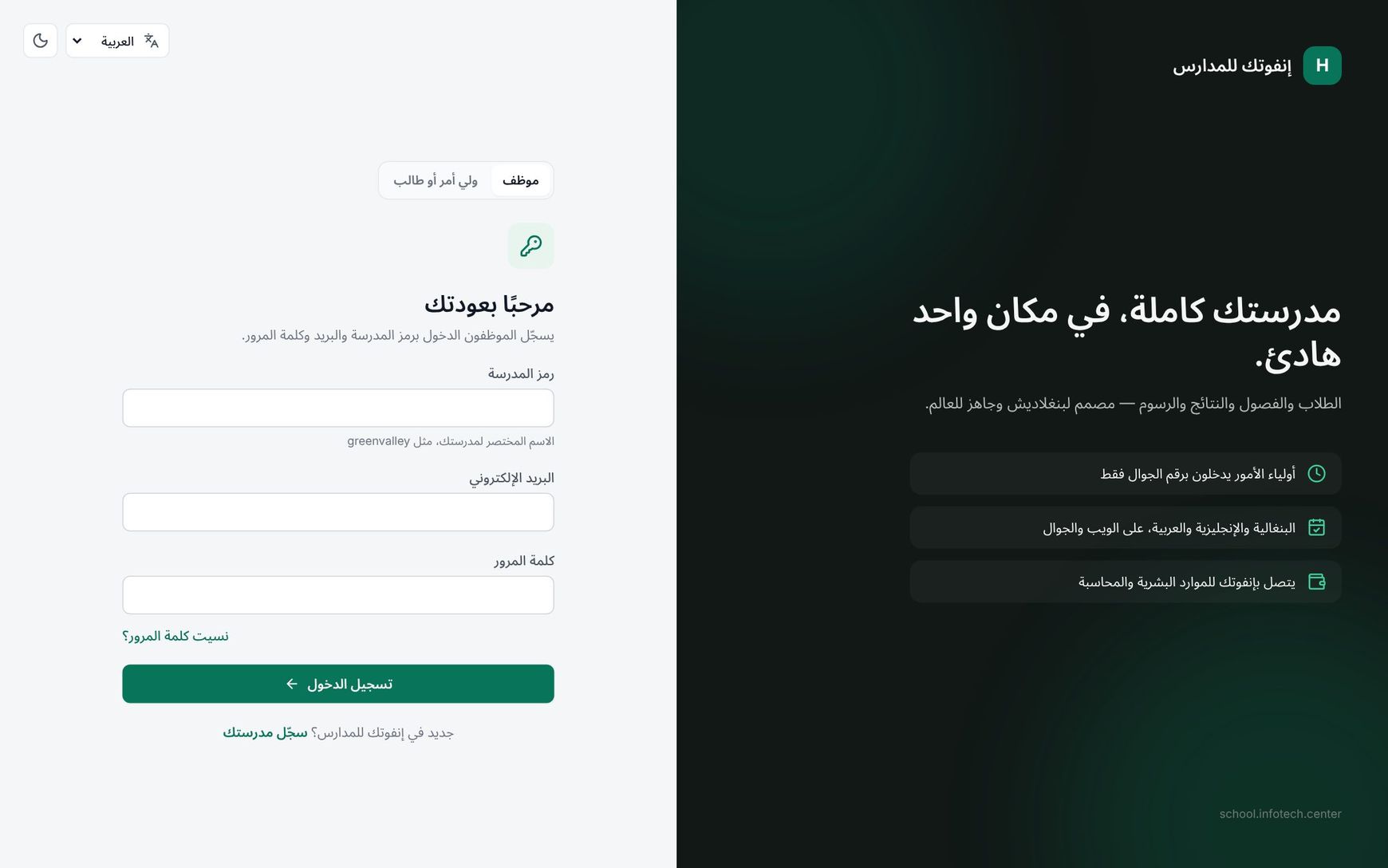 The sign-in page in Arabic, laid out right to left
Right-to-left for Arabic
In Arabic the menu moves to the right, text and tables read from right to left, and arrows point the other way. Numbers, email addresses, mobile numbers and codes such as the School code are still typed left to right.
Your language follows you
When you are signed in and change the language on the web, it is saved on your account. From then on, what the school sends you is written in that language:
| Sent to you | Follows your language |
|---|---|
| Emails (invitation, password reset, alerts) | Yes |
| Notifications in the app and on the web | Yes |
| SMS (sign-in codes, absence alerts and other messages) | Yes |
Each person has their own setting. Changing yours never changes anyone else's.
Note: A new user starts with the language of the staff member who added them, and the invitation email is written in it. If your office works in Bangla, guardians and students they add receive their sign-in codes and alerts in Bangla until they choose otherwise on the web.
In the phone app
Open Profile › Language and pick English, বাংলা or العربية. Until you choose, the app follows your phone's language. Arabic is right-to-left in the app too.
Note: The app's Language setting changes only the app screens. The language of emails and SMS is the one saved on your account from the web app.
See The mobile app.
What is translated, and what is not
- Every menu, button, message and help text in the web and phone apps is translated.
- What your school types in stays as typed. Many records have two names for this reason, for example Name (English) and Name (Bangla) for students, so that class lists and mark sheets can show the right one.
- A notice or SMS you write yourself goes out exactly as you wrote it. Write it in the language your families read, or send two versions. See Notices and SMS.
Tip: SMS in Bangla is split into parts of 70 characters, and each part costs SMS credit. Keep Bangla messages short.
Good to know
- Dates and numbers are shown in the style of the language you chose.
- The public pages that people open without signing in, such as result checks and certificate verification, also have the language menu.
- There is no school-wide language setting. Each staff member, guardian and student chooses their own.
Examples
A school in Sylhet with families abroad. The office assistant, Shirin Akter, works in Bangla and adds the guardians of Class Six A. Their SMS codes and absence alerts arrive in Bangla. Mr. Jamal Uddin, who works in Dubai and reads Arabic more easily, signs in on the web, picks العربية, and from then on his messages from the school come in Arabic.
A principal who prefers English. Principal Farhana Rahman switches to English in the top bar. Her emails about leave applications now come in English, while the accountant, who uses Bangla, keeps receiving his in Bangla.
Last updated 30 Oct 2026