ID cards and Excel import
Two tools save the office hours of work: ID cards prints a whole section's student ID cards at once, each with a QR code anyone can scan to check it is genuine, and Import brings in a whole class list, or the staff list, from Excel.
ID cards
Open Students › ID cards (permission student:read).
- Choose the Class and Section. The cards of every active student in that section appear, with a count such as "42 cards".
- Choose Print and print on card stock, or save as PDF for a card printer.
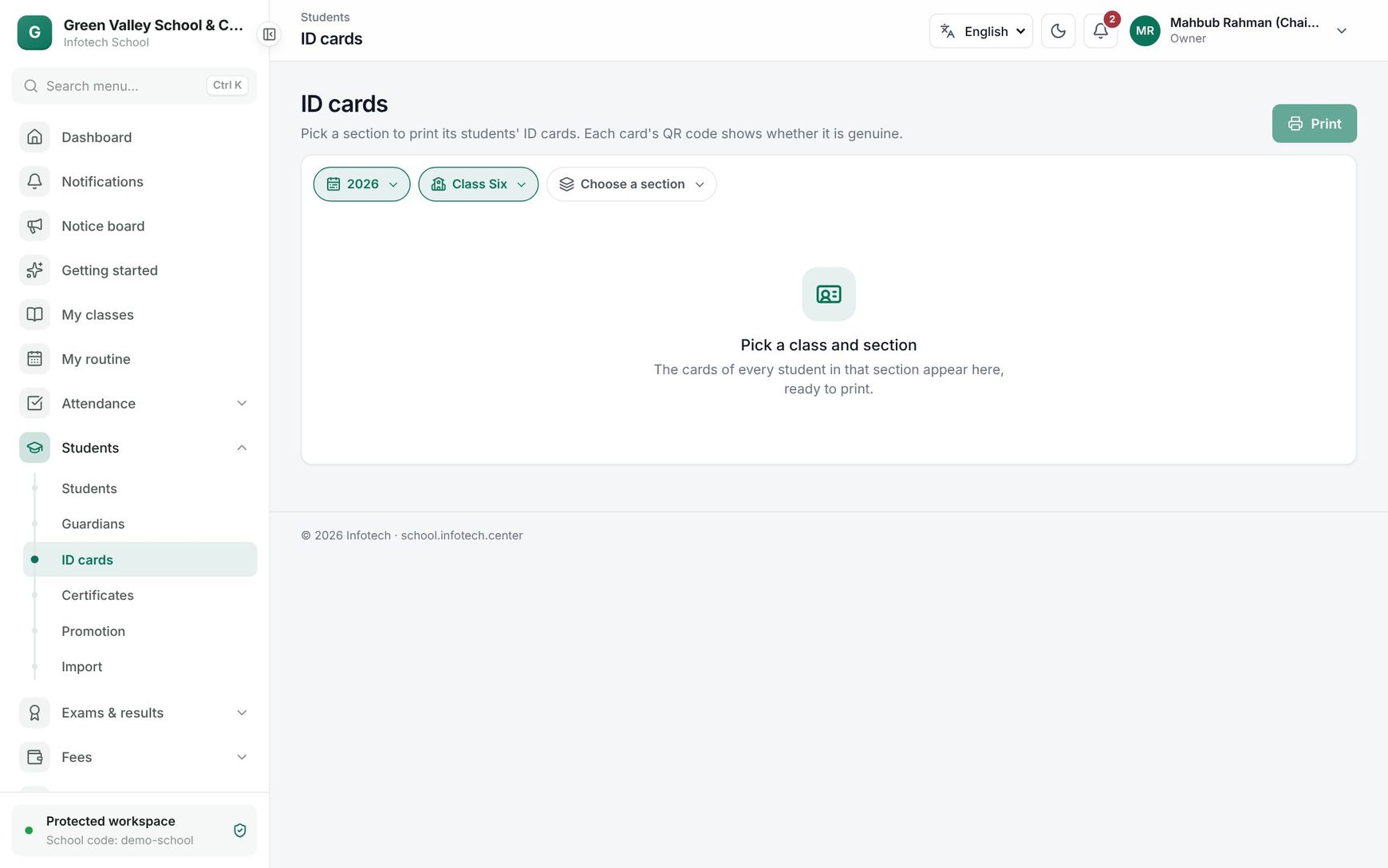 ID cards of one section, ready to print
Each card shows the school's name and logo, the photo, the name in English and Bangla, class, section and group, Roll and shift, ID (student number), Blood group, the guardian's mobile, the principal's signature (when the school has one) and a QR code.
Tip: Upload photos first, from each student's record. A card without a photo shows the first letter of the name instead.
Checking a card
Scanning the QR code opens the ID card check page, with no sign-in needed. It shows:
| Result | Meaning |
|---|---|
| Genuine ID card | The card was issued by the school. The page shows the name, school, Student no., Class, Section and roll, and Year. |
| Careful: this student is no longer active | The card is genuine but the student has left, transferred or graduated. |
| Not a valid card | The code does not belong to a card issued by the school. |
The page shows no phone number or address, so a lost card does not reveal the family's details.
Import from Excel
Open Students › Import. You need student:write to import students and staff:write to import staff; with both, choose the Students or Teachers & staff tab.
Import works in three steps, and nothing is saved until every row is right.
- Get the template: choose Download template. Keep the column names in the first row; you may leave out optional columns.
- Check the file: drop the filled Excel (.xlsx) or CSV file, up to 5 MB. You see Rows, Ready and With problems, and a table with the Line, Name and Result of each row. Columns the import does not know are listed and ignored.
- Import: when every row is ready ("Every row is ready."), choose Import 82 rows (the button shows the number). If a row has problems, fix it in the file, choose Start over and check again.
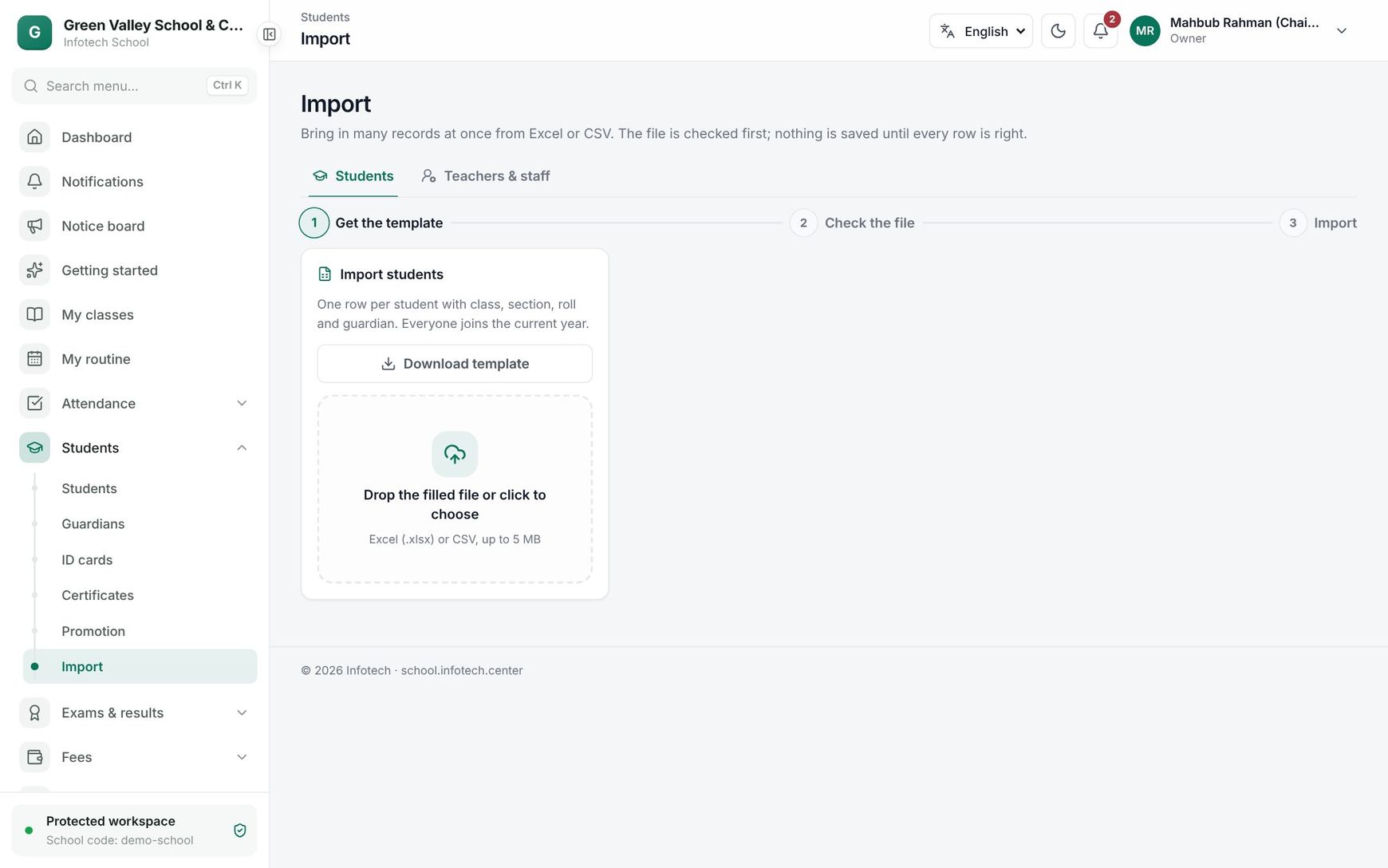 The import page with its three steps
Student columns
One row per student. Everyone joins the current academic year. Up to 2,000 rows per file.
| Column | Notes |
|---|---|
name_en, gender, class, section, guardian_name, guardian_phone | Required. Gender as in the template: MALE, FEMALE or OTHER |
class, section, group, shift, version | The class by its English or Bangla name, and the section name. Add group, shift or version when two sections share a name |
roll_no | 1 to 9999. Empty: the next free roll |
student_no | Empty: the next number is given |
name_bn, date_of_birth, religion, blood_group, birth_reg_no, phone | Optional. Dates as in the template (2014-03-21) |
guardian_relation, guardian_email | Relation defaults to father |
second_guardian_name, second_guardian_phone, second_guardian_relation | Optional second guardian (relation defaults to mother) |
present_address, permanent_address, previous_school, admission_date | Optional |
custom_ + field key | Your student fields, for example custom_transport |
Guardians are matched by mobile number, so brothers and sisters in the same file, or a child whose guardian is already in the school, share one guardian.
Common problems shown in Result:
| Problem | What to do |
|---|---|
| required | Fill in the cell |
| not found | The class or section does not exist in the current year; check the spelling |
| matches more than one section | Add the group, shift or version |
| roll already taken / twice in the file | Change the roll or leave it empty |
| section is full | Raise the capacity in Classes and subjects or use another section |
| already a student / birth registration already used | The child is already in the school |
| not a mobile number | Use a number like 01712345678 |
| same as the guardian | The second guardian has the first one's number |
The import also stops if it would pass the plan's student limit.
Staff columns
One row per teacher or staff member, up to 1,000 rows. Only name_en is required. The other columns are staff_no, name_bn, designation, department, staff_type (TEACHING or NON_TEACHING, default teaching), gender, phone, email, joined_on, qualification and subjects. Imported staff appear in Teachers and staff; give them a sign-in from their page.
Examples
Moving from paper registers. A school in Mirpur has 640 students in 16 sections in an old Excel file. The office copies the columns into the template, one file per class. Class Seven's check shows 3 problems: two rolls typed twice and a mobile number with a missing digit. They fix them, check again, and import 82 students in one go.
ID cards on the first week. After the import, the office uploads photos and prints Class Six A's 42 cards. At the annual sports day the guard scans a card at the gate and sees Genuine ID card.
Last updated 30 Oct 2026