Card readers and biometric devices
Card readers and biometric terminals take attendance without a teacher. A student taps an RFID card (or a fingerprint or face) at the gate, and they are marked present for the day. A staff member's punch is passed to HRM for staff attendance. Unknown cards are collected so the office can hand them out.
Open Attendance › Card readers. You need device:manage (Owner, Principal, Office admin). The page has three tabs: Devices, Cards and Punches. Card readers are part of every plan; there is no extra module.
How it works
| Who punches | Device used for Attendance | Device used for Gate log |
|---|---|---|
| A student | First punch of the day marks them Present. If they were already marked absent that day, they become Late | The punch is only logged (Gate log) |
| A staff member | Sent to HRM (Sent to HRM) | Sent to HRM (Sent to HRM) |
| An unknown card | Listed as Unknown card | Listed as Unknown card |
A student who is already present or late is not changed (Already marked). On a weekly holiday or a holiday the result is Not a school day. Device marks show up on Take attendance and in the Monthly register like any other mark (see Attendance).
Step 1: register a device
- On Devices, choose Register device.
- Fill in:
| Field | What it does |
|---|---|
| Name | For example "Main gate reader" |
| Kind | Card reader, Fingerprint, Face or QR scanner |
| Used for | Attendance (marks students present) or Gate log (only records) |
| Where | Where it hangs, for example "Boys' gate" |
- Choose Register device. The Settings for dialog shows the school id (X-Device-Tenant), the device id (X-Device-Id) and the Key, each with a copy button, plus How the device sends punches for your installer.
- Put these into the device or its sync software, then choose I have saved the key.
Note: The key is shown only once. If it is lost, choose New key on the device's row. The device stops working until its settings get the new key.
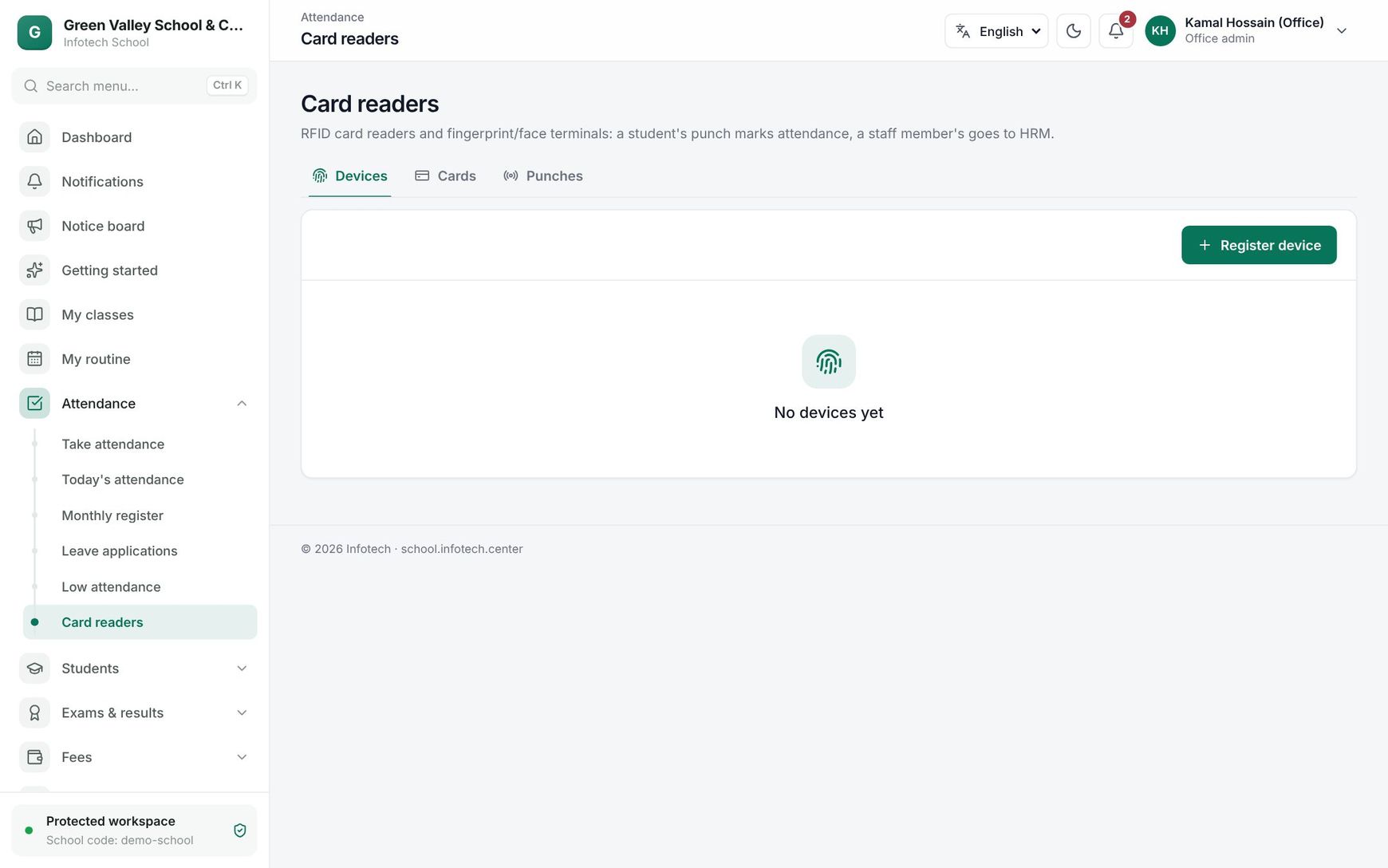 The Devices tab with a registered card reader
The device list shows each device's Device name, kind and place, Used for, and Last heard from (or Never). Use Switch off to stop a lost or broken device; its punches are then refused. Switch on brings it back.
For the installer
The device (or its sync software) posts batches of punches to /api/v1/public/devices/punches, signed with the key as described in the dialog. A batch holds at most 500 punches, and the device's clock must be within 5 minutes of the server. Devices can store punches while offline and send them later; a punch already received is ignored as Duplicate.
Step 2: give out cards
On Cards, choose Give a card:
- Card: "Tap the card on a USB reader, or type its number". For fingerprint or face terminals, type the person's enrolled ID from the device.
- Whose: Student (search and pick) or Staff (choose from Staff member).
- Choose Give a card.
"Their previous card stops working." A card already given to someone else is refused: "This card belongs to someone else; take it back first." Use Search card or name to find a card, and Take card back when a student leaves or loses it.
Step 3: check the punches
Punches shows The day (pick a date) or Unknown cards, newest first:
| Column | Shows |
|---|---|
| Time | When the card was tapped |
| Device | Which device |
| Whose | The student or staff member |
| Result | See below |
| Result | Meaning |
|---|---|
| Present | Student marked present |
| Late | Student had been marked absent, now late |
| Already marked | The day already had a mark |
| Not a school day | Weekend or holiday |
| Not enrolled | The student has no section |
| Sent to HRM | Staff punch passed to HRM |
| Unknown card | Nobody has this card. Give a card opens with the number filled in |
| Duplicate | The same punch was sent twice |
| Gate log | Recorded only |
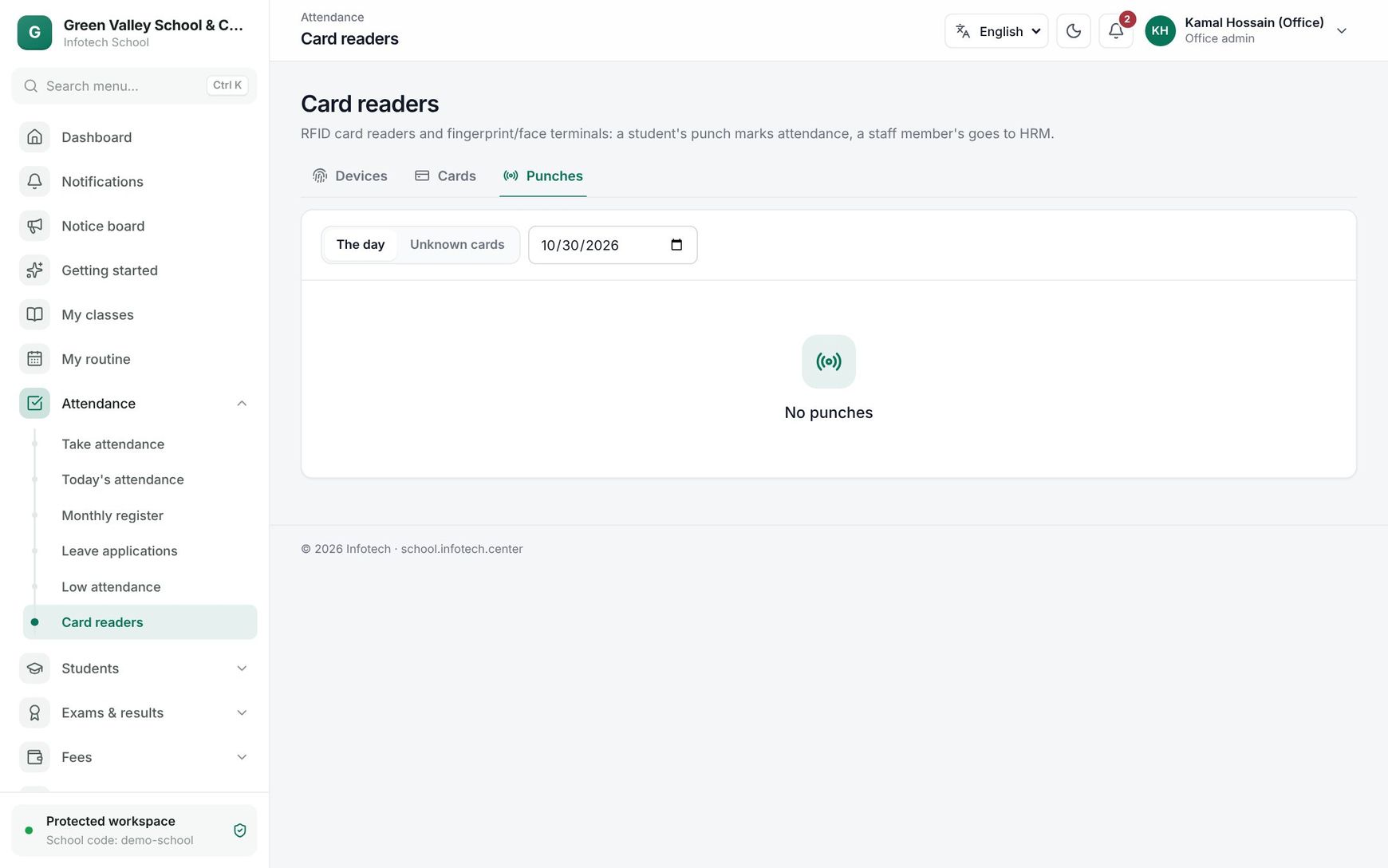 The Punches tab with today's card taps and their results
Staff punches and HRM
Staff punches go to Infotech HRM only when the HRM add-on is connected in Settings › Integrations (see Integrations). HRM uses them for staff attendance. Without HRM, staff punches are still listed under Punches.
Examples
Morning gate at a Dhaka high school. The office registers "Main gate reader", Card reader, Attendance, at the main gate, and gives 650 student cards. At 7:20 Rahim taps his card: Present. The class teacher later opens Take attendance and only has to mark the few students who did not tap.
A lost card. Sumaiya from Class Eight A loses her card. The office gives her a new card for 100 Taka; her old card stops working. When someone taps the old card, it appears under Unknown cards.
Last updated 30 Oct 2026