Signing in and accounts
Everyone signs in at school.infotech.center (or in the phone app) with the School code first, so the system knows which school they belong to. Staff then use their email and password. Guardians and students use their mobile number and a code sent by SMS, so there is no password for them to forget. This page explains each way in, what happens when something goes wrong, and how to sign out.
The sign-in page
At the top, Sign in as has two choices: Staff and Guardian or student. The browser remembers the last school code you used.
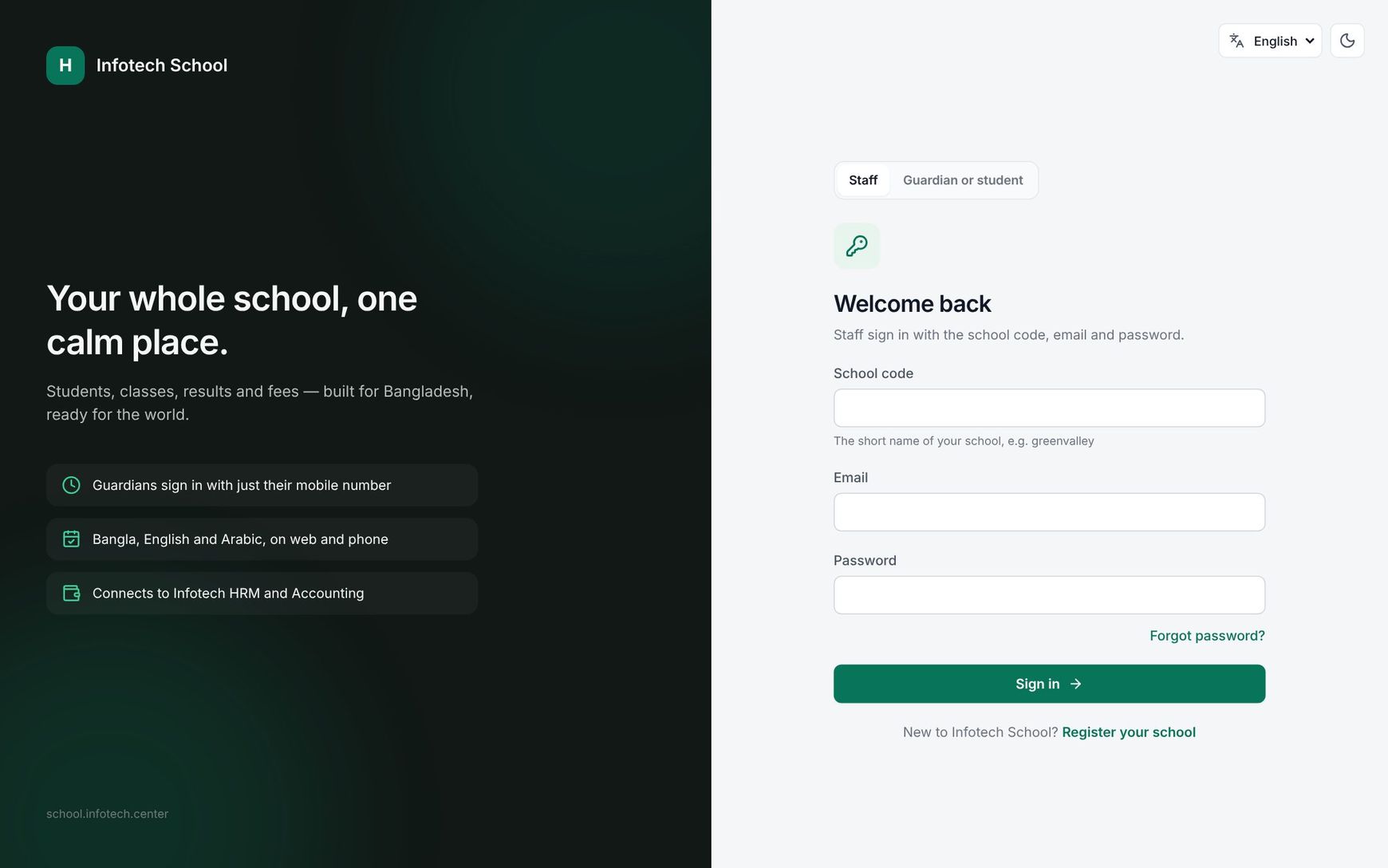 The sign-in page with the Staff and Guardian or student choices
Staff: email and password
- Choose Staff.
- Fill in School code (for example
greenvalley), Email and Password. - Choose Sign in.
- If two-step verification is on for you, the Two-step verification screen asks for the 6-digit code from your authenticator app. Type it in Verification code and choose Verify.
Lost your phone? Type one of your recovery codes in Verification code instead. Each recovery code works once. You have 5 minutes between the password and the code; after that the screen says "Sign-in took too long. Please enter your password again." and you choose Sign in again.
Two-step verification is turned on under Settings › Security, and a school can make it compulsory for admins or for all staff. See Security.
Guardians and students: code by SMS
- Choose Guardian or student.
- Fill in School code and Mobile number (for example
01712345678) and choose Send me a code. - On Enter the code, type the 6 digits from the SMS in Code from the SMS and choose Verify.
If the SMS does not come, choose Send a new code. The page always says a code is on its way, even when the number is not registered, so nobody can find out who studies at your school by trying numbers. If no code arrives, the school office must check that the mobile number on the guardian or student account is right.
| Rule | Value |
|---|---|
| Code length | 6 digits |
| A code works for | 5 minutes |
| Wrong tries per code | 5, then the code is void |
| Codes per mobile number | At most 5 an hour |
Tip: When a parent's SMS does not arrive, the Infotech support team can read the current code out to them after checking who they are. Every time this happens, it is recorded in the school's audit log.
Locked accounts
After 5 wrong passwords or codes, the account is locked for 15 minutes: "Too many failed attempts. Try again in 15 minutes." An account the school switched off shows "This account has been disabled. Contact the school office."
Forgot password (staff)
- On the sign-in page choose Forgot password?.
- Fill in School code and Email and choose Email me a reset link.
- Open the email and follow the link. On Choose a new password fill in New password and Repeat new password, then choose Save and sign in.
The link works once and expires in an hour. At most 3 reset emails are sent per account per hour. If two-step verification is on, you still enter your authenticator code after the new password. If the link has expired, the page says This link no longer works and offers Send a new link.
A password needs at least 10 characters, with a letter and a number. Very common passwords and passwords containing your email name are refused.
Invitations
Staff added by the school office (and an owner whose school Infotech created) receive an invitation email.
- Open the link. The page says Welcome, name and names the school.
- Fill in New password and Repeat new password.
- Choose Activate my account. You are signed in.
An invitation works for 7 days. If it expired, ask the office to choose Resend invite on your user; the old link then stops working. The office can instead give you a Temporary password, which you must change at your first sign-in. See Users and roles.
Accepting the terms
On your first sign-in, and again whenever the terms change, a Terms of use and privacy window shows a short summary with links to the Terms of use and Privacy notice. Choose I agree to continue, or Sign out. Nothing else in the app opens until you agree. The phone app shows the same step as Terms and privacy.
Signing out, and signing out everywhere
Choose your name at the top right, then Sign out. In the phone app it is Profile › Sign out. You stay signed in on a device as long as you keep using it; after 30 days without use you must sign in again.
There is no single "sign out of all devices" button. These actions sign a person out on every other device:
| Action | Who | Effect |
|---|---|---|
| Change password under Settings › Security | You | Other devices signed out; this one stays signed in |
| A new password through a reset link | You | Every other device signed out |
| Reset password on a user | School admin | Signed out everywhere; must choose a new password |
| Reset 2-step on a user | School admin | Signed out everywhere; two-step is off |
| Turning off Can sign in | School admin | Signed out everywhere and blocked at once |
Examples
A teacher's lost phone. Nasima Akter, who teaches Class Six A, loses her phone with her authenticator app. She signs in on the office computer with her password and one of her saved recovery codes, then changes her password under Settings › Security; the lost phone is signed out.
A father with a new SIM. Abdul Karim changes his number to 01819000000. The office updates the mobile number on his guardian account. He chooses Guardian or student, types greenvalley and the new number, and signs in with the SMS code.
Last updated 30 Oct 2026