Infotech console overview
The Infotech console is where the Infotech team runs the platform: every school, its plan and add-ons, the invoices Infotech sends to schools, payment gateways, the team itself, logs and server health. It is separate from the school screens. A school's owner, principal or teacher never sees the console, and an Infotech account never sees a school's students, fees or exams.
Signing in to the console
Sign in on the normal sign-in page with the school code infotech and your Infotech email (see Sign-in and accounts). The Infotech account is the platform's own account, so after sign-in you land on the console dashboard instead of a school dashboard.
Note: If an Infotech account tries to open a school page, the app refuses with "Infotech accounts use the console, not school pages." In the mobile app, a console account sees Use the web console with a link to Open the web console: the app is for school staff, guardians and students.
Super admin and viewer
Each Infotech team member has one of two roles. You set it on the Infotech team page (see Infotech team, logs and sign-in codes).
| Role | What they can do |
|---|---|
| Super admin | Manages schools, plans, billing, settings and the team. |
| Viewer | Sees schools, invoices, logs and server status; changes nothing. |
A viewer sees the same lists, but the buttons that change something (New plan, Mark paid, the Plan and Add-ons controls in a school's drawer, Show code and so on) are hidden or refused. Infotech must always keep at least one active super admin.
The console sidebar
| Group | Page | Who sees it | What it is for |
|---|---|---|---|
| Dashboard | Everyone | The platform at a glance (below). | |
| Notifications | Everyone | Your own notifications. | |
| Management | Schools | Everyone | Every school: create, plan, add-ons, SMS credits, suspend. See Schools. |
| Invoices & payments | Everyone | Invoices to schools, online payments, billing profiles. See Invoices and payments. | |
| Plans | Everyone | The plans schools can be on. | |
| Add-ons | Everyone | The add-on catalogue and store prices. See Plans and add-ons. | |
| Infotech team | Super admin | Who works on the console. | |
| Configuration | Billing settings | Super admin | How Infotech appears on invoices. |
| Payment gateways | Super admin | Infotech's own bKash, Nagad and SSLCommerz accounts. | |
| Platform settings | Super admin | Sign-up plan, grace days, reminder days, support contacts. | |
| Insights | Audit log | Everyone | Every change in the Infotech account or in one school. |
| Access log | Everyone | Sign-ins and failed sign-ins. | |
| Sign-in codes | Everyone | SMS codes sent to guardians and students. | |
| Server status | Everyone | App, memory, disk and database. | |
| Account | Security | Everyone | Your password and two-step verification. See Security. |
The dashboard
Open Dashboard. The page is titled Infotech console and greets you by name.
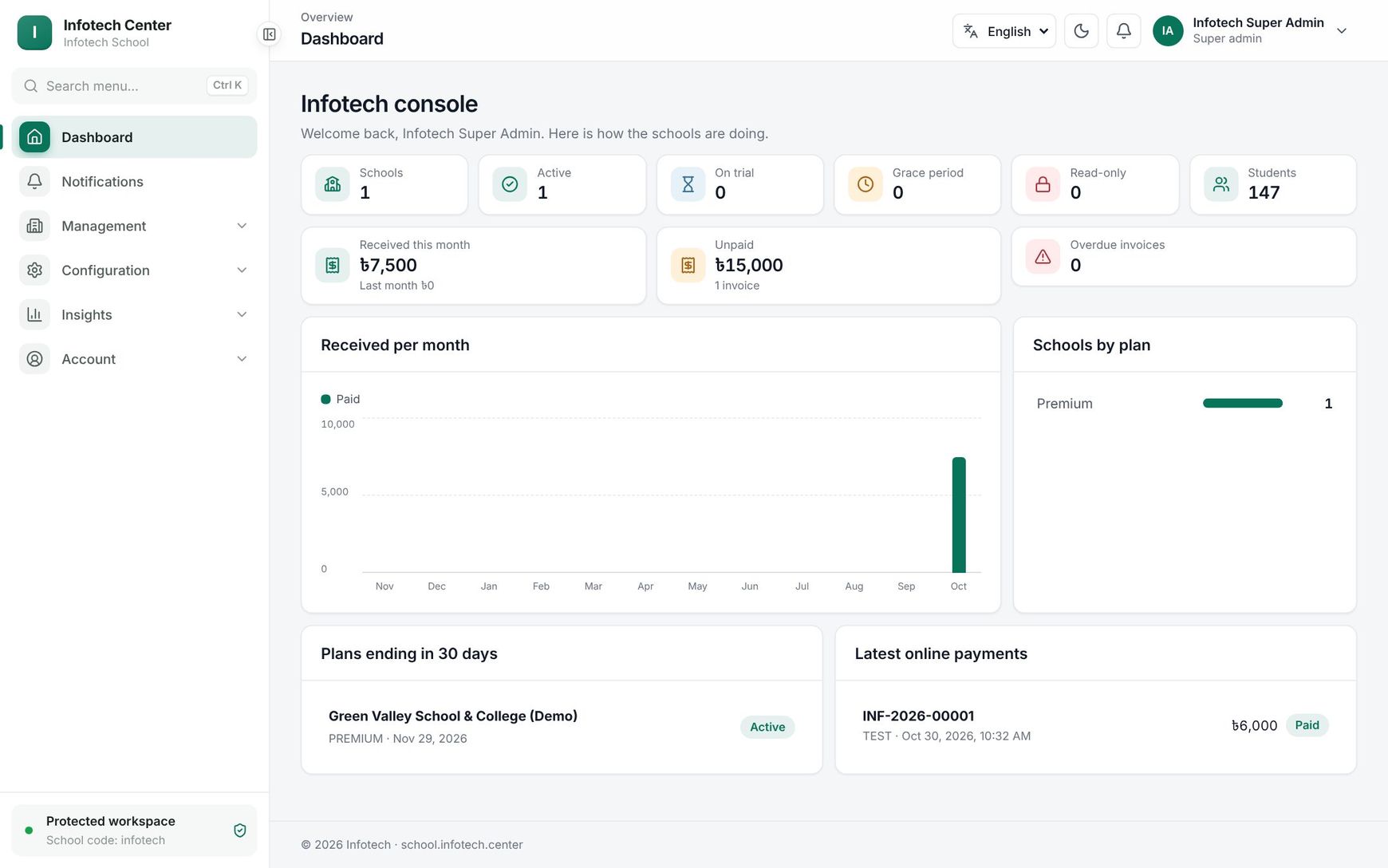 The Infotech console dashboard with school counts, revenue and plans ending soon
The first row counts schools. Suspended schools are counted in Schools only; the other figures are for schools that are not suspended.
| Figure | Meaning |
|---|---|
| Schools | All schools on the platform. |
| Active | Schools that are not suspended. |
| On trial | Schools still on a free trial. |
| Grace period | Plan ended, still working fully for the grace days. |
| Read-only | Plan ended and grace over: the school can look but not change anything. |
| Students | Active students in all those schools together. |
The second row is money:
| Figure | Meaning |
|---|---|
| Received this month | Invoices paid this month, with Last month underneath for comparison. |
| Unpaid | The total of unpaid invoices, and how many there are. |
| Overdue invoices | Unpaid invoices past their due date. |
Below are four panels:
- Received per month: a column chart of Paid amounts for each of the last 12 months, by the day the invoice was paid.
- Schools by plan: how many schools are on each plan.
- Plans ending in 30 days: schools whose plan ends within 30 days, or has already ended. Each shows the plan and end date, with a Trial badge or its access (Grace period, Read-only). Click a school to open its drawer on the Schools page. When the list is empty you see No plan ends in the next 30 days.
- Latest online payments: the 8 newest online payments, with invoice number, gateway, time, amount and status (Paid, In progress, Failed or Cancelled).
Day to day
A typical morning for the Infotech support desk:
- Open Dashboard and look at Plans ending in 30 days. Call schools whose plan ends this week.
- Check Overdue invoices. Open Invoices & payments and filter Unpaid to see who has not paid.
- Look at Latest online payments for any that are In progress. A payment stays in progress when the payer closed the browser; see Invoices and payments for Check again.
- When a guardian calls because the sign-in SMS did not arrive, use Sign-in codes.
Example
On 1 March, Karim Hossain, a super admin at Infotech, opens the dashboard. Plans ending in 30 days lists Sunrise Model School (Standard, ends 12 March) and Green Valley School (Grace period). Overdue invoices shows 2. He clicks Green Valley School to open its drawer, sees its plan ended on 25 February, and calls the principal about the renewal invoice before the school becomes read-only.
His colleague Nusrat Jahan is a Viewer. She sees the same dashboard and lists, so she can answer a school's questions, but she cannot extend a plan or mark an invoice paid.
Last updated 30 Oct 2026