Invoices and payments
Schools pay Infotech in advance for their plan and for store add-ons. Each payment starts with an invoice, paid online through Infotech's own gateways (bKash, Nagad, SSLCommerz) or by bank transfer, which a super admin marks paid. A paid plan or add-on invoice starts its period on its own.
Everyone on the Infotech team can see Invoices & payments. Every change on these pages, and Billing settings and Payment gateways, need the Super admin role.
Invoices
Open Management › Invoices & payments. It has three tabs: Invoices, Online payments, Billing profiles.
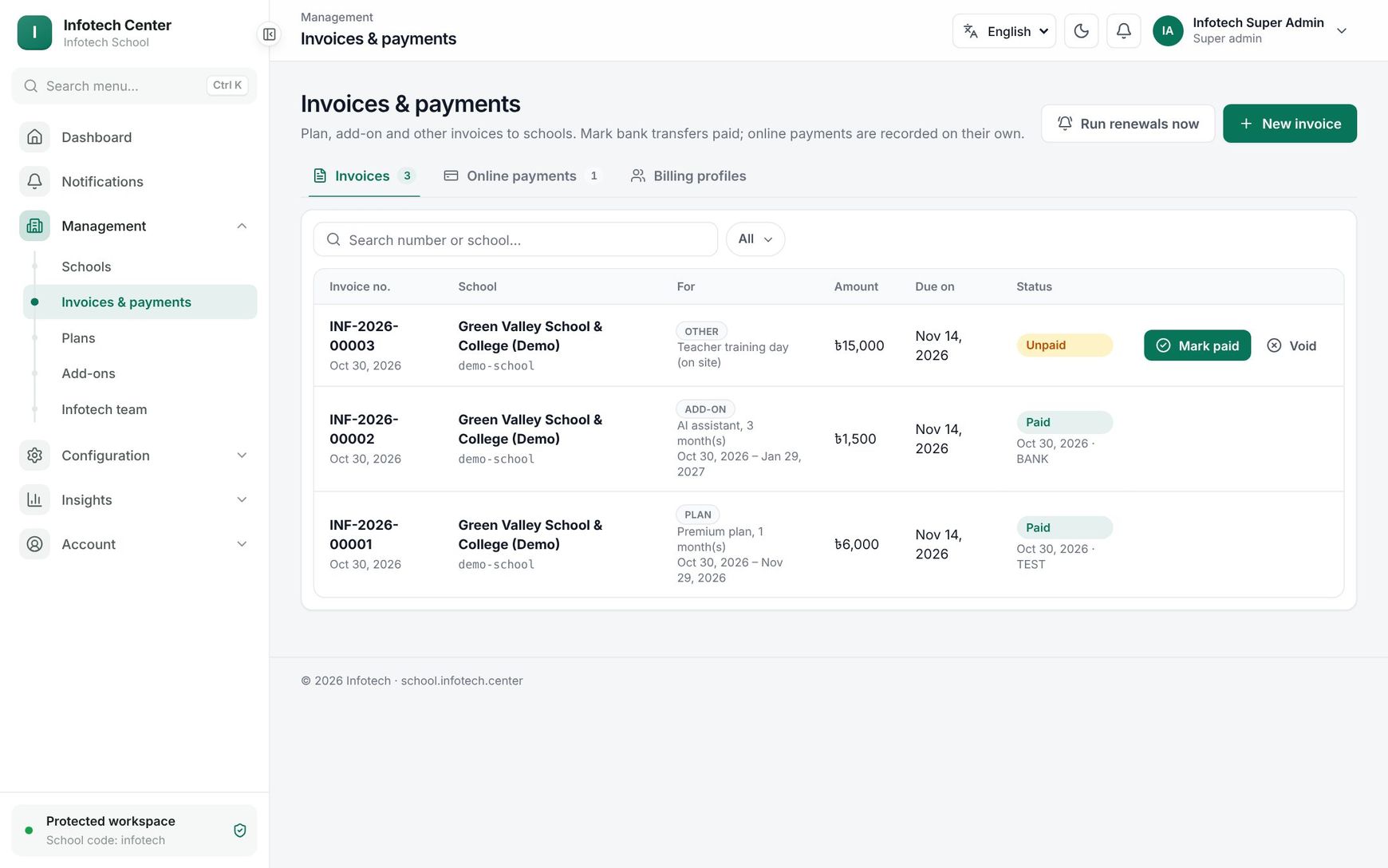 The Invoices tab with plan and add-on invoices to schools
| Column | Shows |
|---|---|
| Invoice no. | Number and issue date |
| School | Name and school code |
| For | Kind, description and period paid for |
| Amount | The total with tax |
| Due on | Issue date plus the Days to pay |
| Status | Unpaid, Paid (with the date and method) or Void |
Search by number or school and filter by Status.
The kinds are Plan (made when a school chooses or renews a plan, by the renewal run, or by you), Add-on (a store purchase, or you), Other (you: a setup fee, training…) and Usage (the older monthly bill, see below).
Issue an invoice
- Choose New invoice.
- Pick the School.
- Under For, choose Plan, Add-on or Other.
- For Plan, pick the plan (trial plans are not listed); for Add-on, the add-on. Enter Months (1–36). For Other, enter the Amount.
- Add a Description (required for Other).
- Choose New invoice.
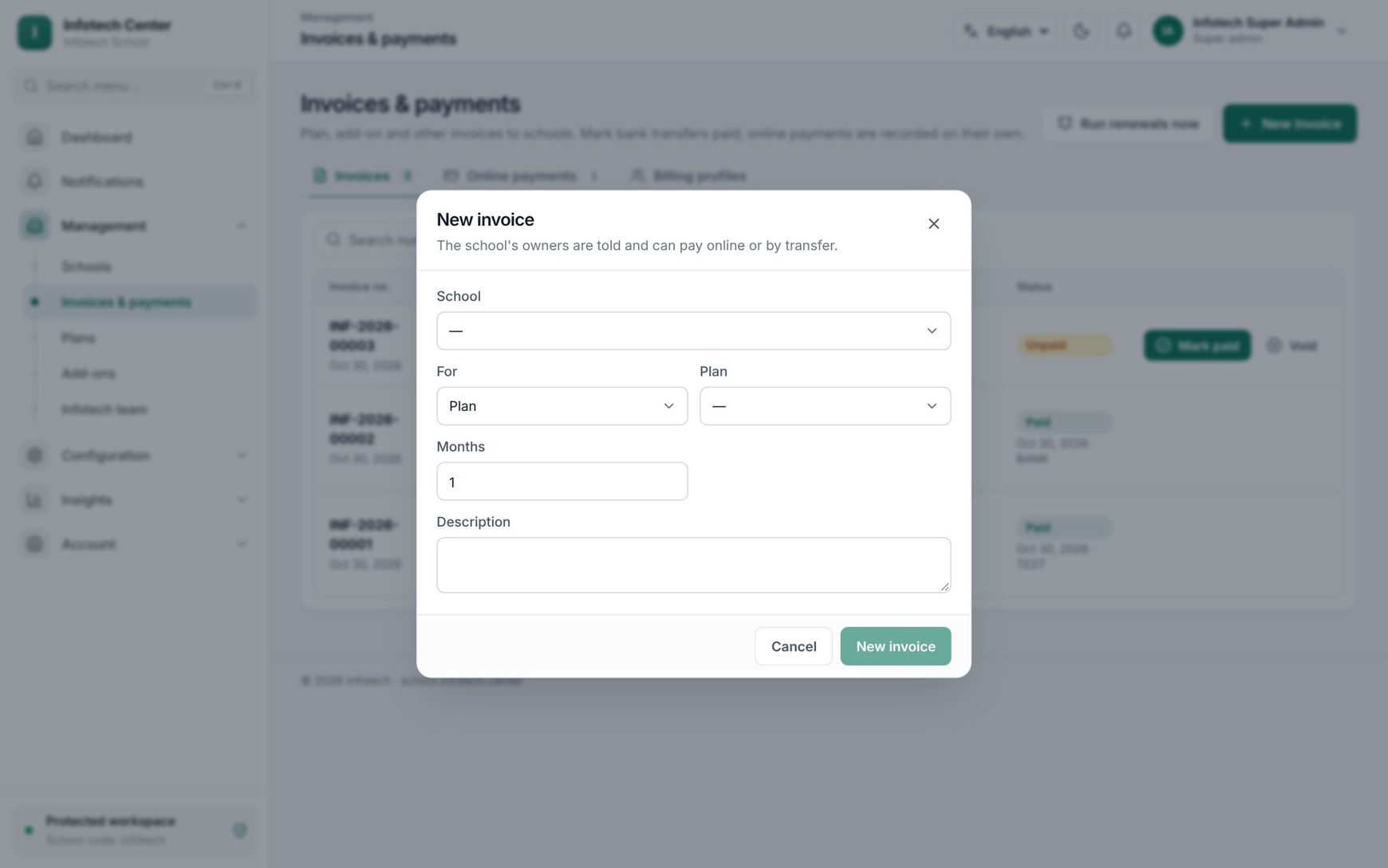 The New invoice dialog for billing a school
The school's owners are told and can pay online or by transfer.
How the amount is worked out:
- Plan: active students × price per student, at least the monthly minimum, × months. Months must be whole billing periods of the plan.
- Add-on: the add-on's Per month price × months.
- Other: the amount you type.
The school's Discount % from its billing profile comes off plan and add-on invoices, and the Tax % from Billing settings is added to all three.
Note: A school can have only one unpaid plan invoice, and one unpaid invoice per add-on: "There is already an unpaid invoice for this — pay or cancel it first."
Mark an invoice paid
When a bank transfer arrives, choose Mark paid on the invoice. Fill in Paid on (today by default), Method (BANK by default; type CASH or anything else) and Reference, then choose Mark paid.
- A Plan invoice starts the plan for the months paid. If it renews the plan the school is on and that plan has not ended yet, the new months follow on from the current end; otherwise they start today and the school moves to that plan.
- An Add-on invoice starts the add-on for the months paid, after any trial or paid period still running.
- The school's owners are told the payment was received. A read-only school whose plan invoice is paid works fully again at once.
Void an invoice
Choose Void on an unpaid invoice, enter a Reason (at least 3 characters) and choose Void. The invoice stays on the list as Void.
Online payments
The Online payments tab shows When, Invoice no., Gateway, Amount and Status.
| Status | Meaning |
|---|---|
| Paid | Confirmed; the invoice is paid |
| In progress | The school started paying but the result is not known yet |
| Failed | Refused, or the wrong amount was paid |
| Cancelled | The payer cancelled at the gateway |
A payment stays In progress when the payer closed the browser. The server asks the gateway again every few minutes and gives up (Failed) after a day. To ask at once, choose Check again.
Run renewals
Every morning the server does this on its own: a school on a paid plan that ends within the Renewal reminder days gets a renewal invoice for one billing period, and owners are told when the plan ends, when the school becomes read-only, and before a trial ends.
Run renewals now does the same at once and shows, for example, "3 renewal invoices and 1 notices sent". A school that already has an unpaid plan invoice does not get a second one.
Billing profiles and usage bills
The Billing profiles tab lists each active school with Price per student, Minimum, Cycle, Discount % and Unpaid. Choose the pencil to change them, with Billing email and Notes. "Changes apply to the next invoice."
Discount % applies to plan and add-on invoices. Price per student and Minimum are used for usage bills, and for plan invoices of a school on the custom plan.
The Subscriptions card makes the older usage bill for schools billed after the month: pick the month and choose Make invoices. Each active school not on trial gets one Usage invoice (yearly schools only in January); schools already billed for that period are skipped.
Billing settings
Open Configuration › Billing settings.
| Field | What it does |
|---|---|
| Seller name | Required |
| Tax / BIN number, Address | Infotech's details as the seller |
| Tax % | 0–50, added to plan, add-on and other invoices |
| Invoice prefix | 2–10 letters. "Numbers look like INF-2026-00042" |
| Days to pay | 0–90 days until the due date |
| Bank details | "Shown to schools paying by transfer" |
Payment gateways
Open Configuration › Payment gateways. Schools pay through the gateways switched on here, with a card each for SSLCommerz, bKash and Nagad.
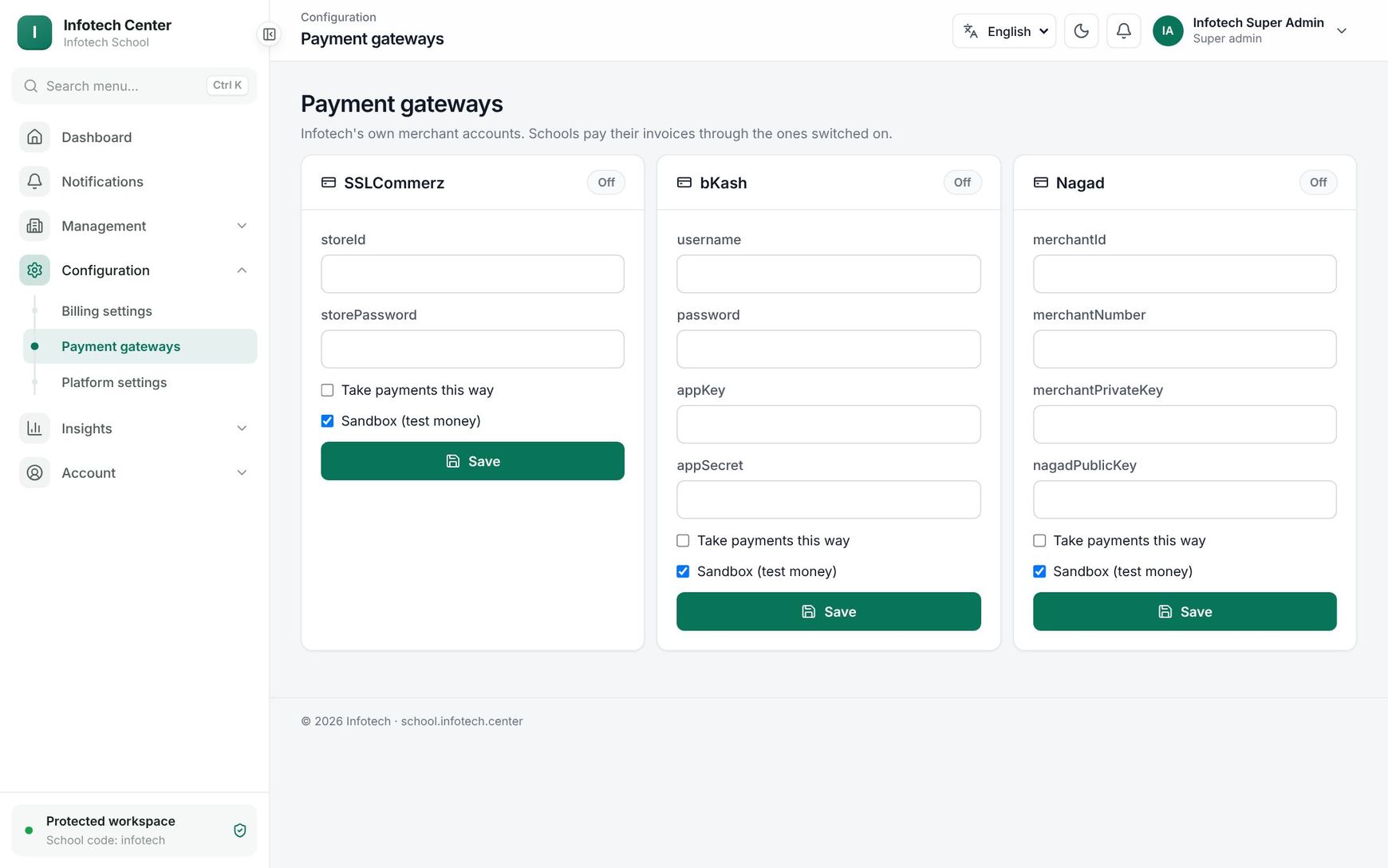 The Payment gateways page with the bKash, Nagad and SSLCommerz cards
- Fill in the merchant keys:
storeIdandstorePasswordfor SSLCommerz;username,password,appKeyandappSecretfor bKash;merchantId,merchantNumber,merchantPrivateKeyandnagadPublicKeyfor Nagad. - Tick Take payments this way. Keep Sandbox (test money) ticked until you have tested with the gateway's sandbox keys.
- Choose Save.
Saved keys show only their last four characters; leave a field empty to keep it. A gateway cannot be switched on until every key is filled in.
Examples
A bank transfer for a year. Sunrise Model School has 420 active students on Starter (৳8 per student, minimum ৳1,500), ending on 31 December. Issue a Plan invoice for 12 months: 420 × ৳8 × 12 = ৳40,320. When the transfer arrives, choose Mark paid, Method BANK, Reference "DBBL TT 55821". The school's plan now runs from 1 January for 12 months.
A bKash payment stuck in progress. Green Valley School's owner paid the Library add-on invoice with bKash but closed the browser. The row is In progress; Check again turns it Paid and the add-on starts.
Last updated 30 Oct 2026