Plans and add-ons
What a school can use is decided by its plan and its add-ons. Plans are kept as data: you set their price per student, monthly minimum, billing period, student limit and modules on the Plans page. The Add-ons page sets what each module or connected product costs a month in the schools' add-on store. Platform settings decide which plan new schools start on and how long an ended plan keeps working.
Everyone on the team can see Plans and Add-ons; changing them, and Platform settings, need the Super admin role.
Plans
Open Management › Plans. Prices are per active student per month, with a monthly minimum.
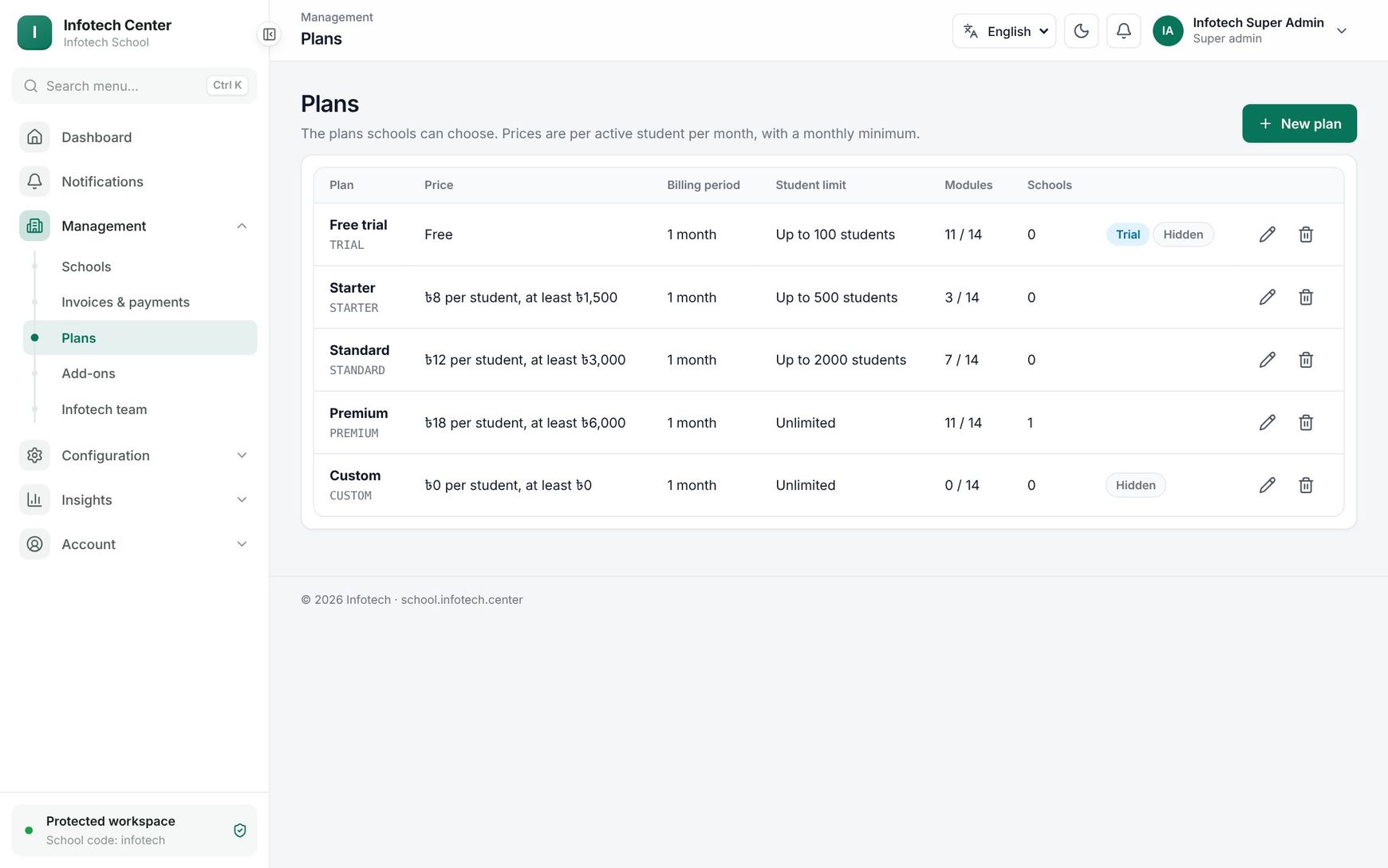 The Plans page with each plan's price, period, limit and modules
| Column | Shows |
|---|---|
| Plan | Name and code |
| Price | For example "৳8 per student, at least ৳1,500", or Free for a trial plan |
| Billing period | 1, 3, 6 or 12 months |
| Student limit | "Up to 500 students" or Unlimited |
| Modules | How many modules the plan includes |
| Schools | How many schools are on it |
Badges: Trial (a free trial plan), Hidden (schools cannot choose it themselves) and Inactive.
Create or change a plan
Choose New plan, or the pencil on a plan, fill in the fields and choose Save.
| Field | What it does |
|---|---|
| Code | Capitals, e.g. GOLD (2–40 capital letters, digits or _). Cannot change later |
| Name, Description | Shown to schools |
| Price per student | Per active student per month |
| Monthly minimum | The least a school pays a month, however few students it has |
| Currency | BDT by default |
| Billing period | 1, 3, 6 or 12 months. Invoices are for whole periods |
| Free trial days | Days a new school on this plan runs before its plan ends |
| Student limit | Empty = no limit |
| Modules | Tick the modules the plan includes |
| Trial plan (free) | A free trial plan. Trials are never invoiced |
| Schools can choose it | Shown to schools on their Subscription & billing page |
| Active | Off: no longer offered |
| Order | Sort order in lists |
A plan costs a school: active students × Price per student, but at least the Monthly minimum, for each month. For example, at ৳8 per student with a ৳1,500 minimum, a school with 420 students pays ৳3,360 a month, and one with 150 students pays ৳1,500.
When you save a plan, schools already on it get its modules at once.
Delete a plan
Choose the bin and confirm Delete the {plan} plan?. The built-in trial and custom plans cannot be deleted, nor a plan that schools are on or that new sign-ups start on.
Tip: To stop selling a plan that schools are still on, untick Active or Schools can choose it instead.
Add-ons catalogue
Open Management › Add-ons. "Every module and add-on: its monthly price in the store, its free trial, and whether schools can buy it."
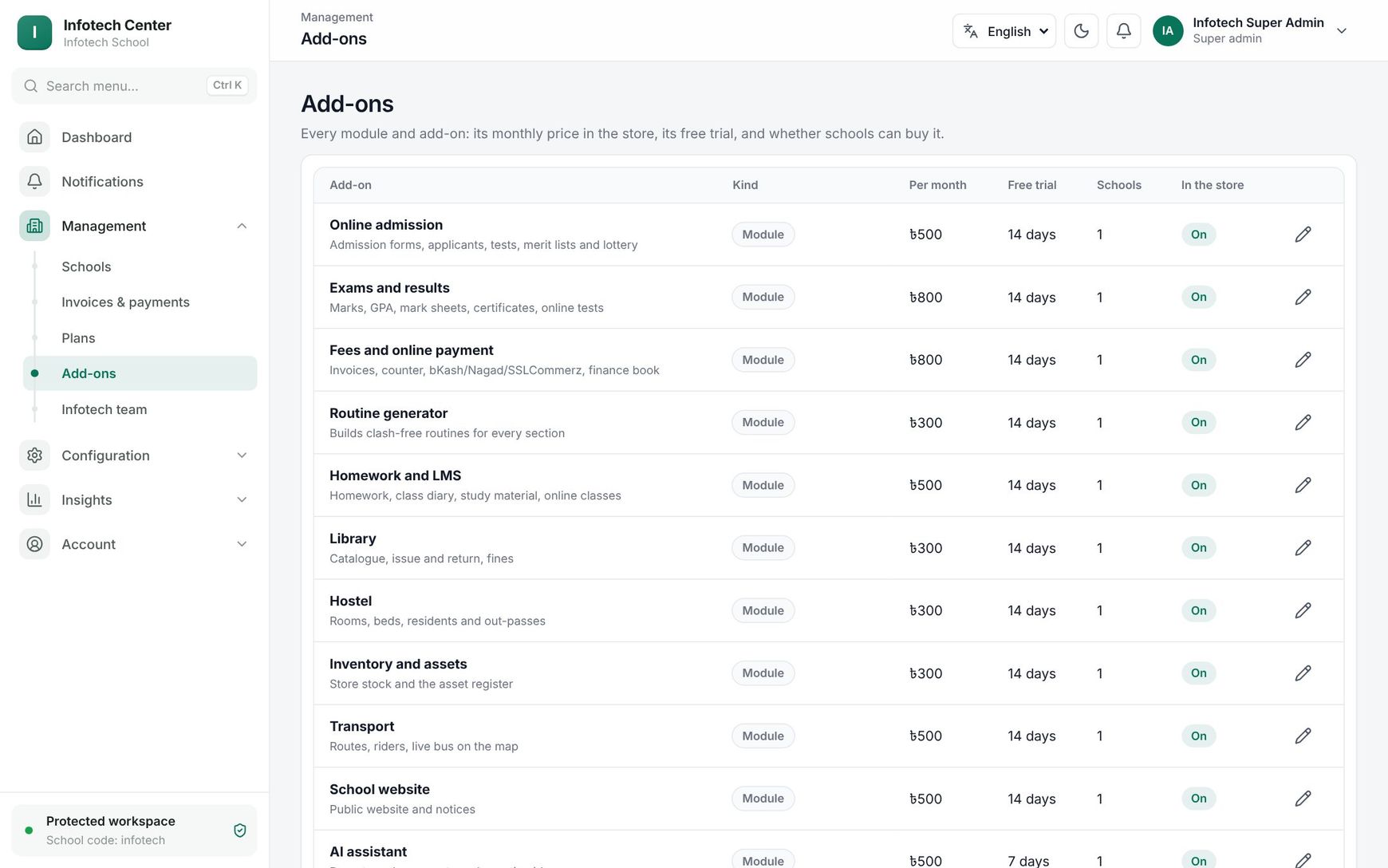 The Add-ons catalogue with prices and trials
| Column | Shows |
|---|---|
| Add-on | Name and description |
| Kind | Module (a part of the school app, such as Library or Transport) or Connected product (Infotech HRM, Accounting, the canteen POS) |
| Per month | The store price |
| Free trial | Days of free trial in the store |
| Schools | Schools that have it on today |
| In the store | On or Off |
Choose the pencil to change Name, Description, Per month, Currency, Free trial days (0–90) and Sold in the store. Add-ons cannot be added or deleted here.
How entitlements work
For every school, each add-on is on when it is not blocked and at least one of these sources gives it:
| Source (as shown in the drawer) | Where it comes from |
|---|---|
| From the plan | The school's plan includes the module |
| Granted by Infotech | A super admin set On in the school's drawer |
| Infotech trial | A super admin set Trial with an end date |
| Store trial | The school started the free trial in its add-on store (once per add-on) |
| Bought in the store | The school paid an add-on invoice for some months |
Blocked in the drawer wins over everything: the add-on is off even if the plan or a purchase includes it, and the school's store shows it as Suspended. Automatic removes your own choice so the plan and the store decide. You set these on the school's Add-ons tab (see Schools).
Trials and paid periods end on their own: every night just after midnight each school's add-ons are worked out again. A paid period bought during a trial or another paid period starts after it. What schools see in their store is described in Subscription and add-on store.
Grace period and read-only
When a school's plan end date passes:
- Grace period: for the Grace days, everything keeps working. The school sees "Your plan has ended. Everything keeps working until {date} — renew to avoid read-only mode."
- Read-only: after that, everything still opens, but changes are refused with "The plan has ended: the school is read-only until it renews." Paying invoices, the add-on store page, signing in, users' own security and notifications, and what families do (paying fees online, homework) still work. The store does not start trials or sell add-ons while the school is read-only.
Paying the plan invoice, or extending the plan, lifts read-only at once.
Platform settings
Open Configuration › Platform settings. "How new schools start and how long an ended plan keeps working."
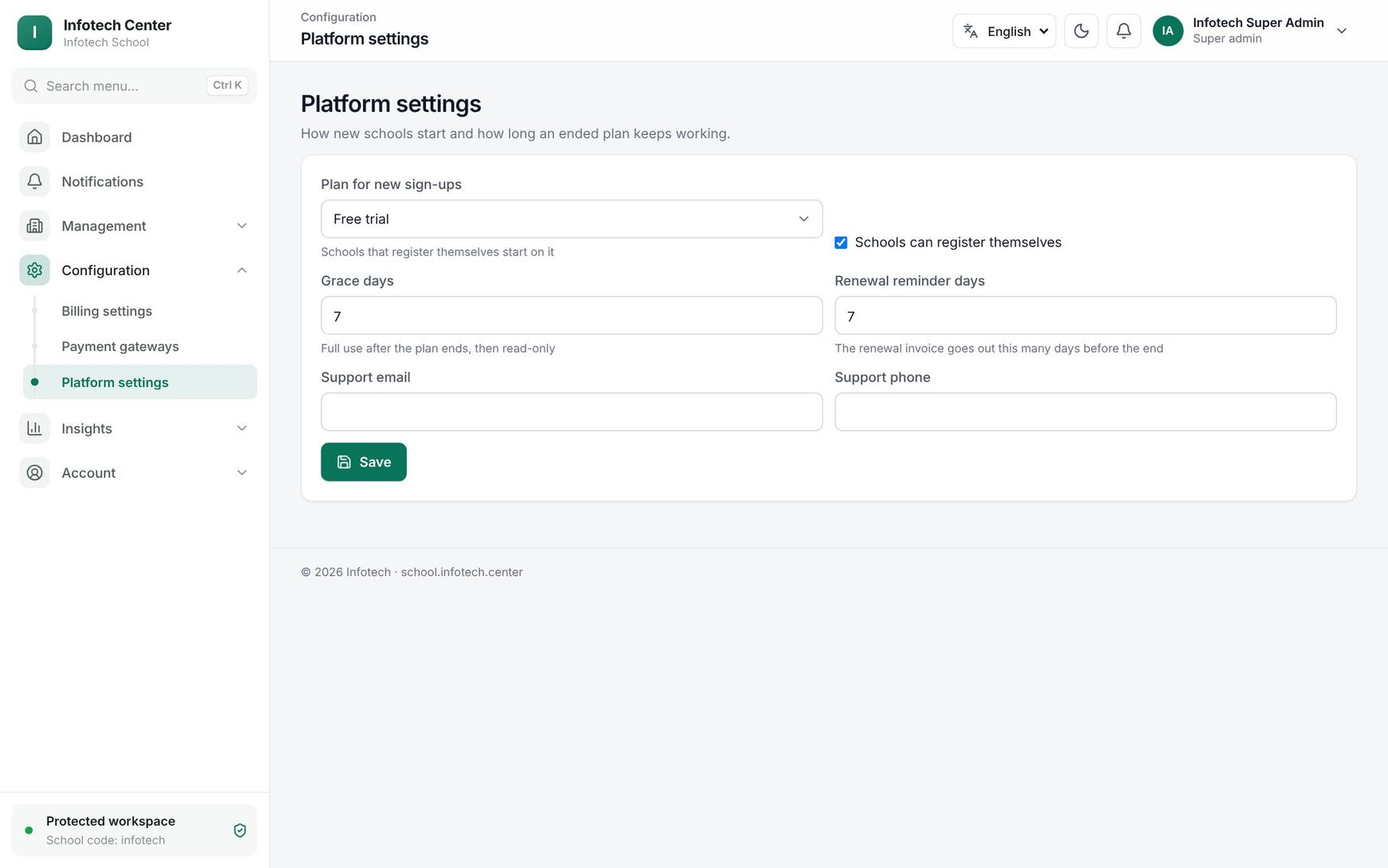 Platform settings with the sign-up plan, grace days and reminder days
| Field | What it does |
|---|---|
| Plan for new sign-ups | Schools that register themselves start on it. Must be an active plan |
| Schools can register themselves | The setting for open sign-up |
| Grace days | Full use after the plan ends, then read-only (0–60, default 7) |
| Renewal reminder days | The renewal invoice goes out this many days before the end (0–60, default 7) |
| Support email, Support phone | Infotech's support contacts |
Choose Save.
Examples
Grace and read-only. Green Valley School's Standard plan ends on 30 June and Grace days is 7. From 1 to 7 July everything works and the school sees the grace banner. On 8 July it becomes Read-only: teachers can still open attendance, but cannot save it. When the owner pays the renewal invoice by bKash on 9 July, the school works fully again.
A hidden plan for a school group. For a group of five madrasas, create MADRASA_GROUP at ৳6 per student, minimum ৳1,000, untick Schools can choose it, and put each madrasa on it from its drawer.
Last updated 30 Oct 2026