Custom student fields
The student form already has the usual details: names, date of birth, guardians, address, birth registration number and so on. Student fields lets you add extra questions for anything else your school records, such as the bus route, previous school GPA, blood donor status or hostel preference. The extra fields appear on the student form and the student's profile, and as columns in Excel import and export.
Open Settings › Student fields. It needs the student:write permission (Owner, Principal, Office admin, Admission officer).
 The list of extra student fields with their key, type and Required badge
Add a field
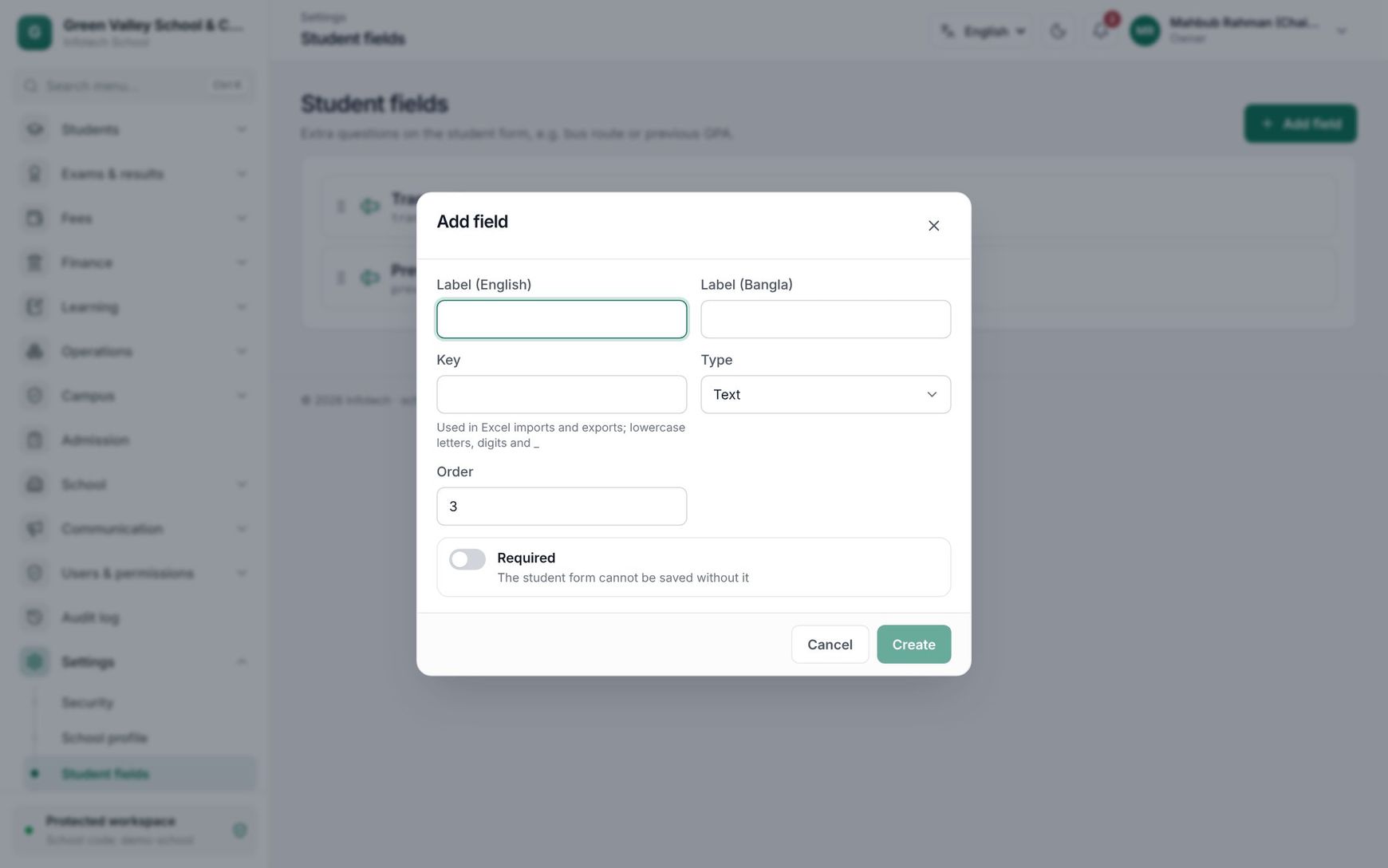
- Choose Add field.
- Fill in the fields below.
- Choose Create.
| Field | What it does |
|---|---|
| Label (English) | The question on the form, for example "Previous school GPA". Required |
| Label (Bangla) | Shown when the app is used in Bangla |
| Key | The name used in Excel imports and exports. 2–40 lowercase letters, digits or _, starting with a letter, for example prev_gpa. It is filled from the English label as you type. It must be unique and cannot be changed later |
| Type | What kind of answer (see below) |
| Choices | Only for Choice list: one option per line, at least two |
| Order | Where the field appears among the extra fields |
| Required | The student form cannot be saved without it |
| Type | Accepts |
|---|---|
| Text | Any text up to 300 characters |
| Number | A number, for example 4.75 |
| Date | A date (in Excel, written as YYYY-MM-DD, for example 2026-01-15) |
| Choice list | One of the choices you listed |
| Yes / no | Yes or no (in Excel: yes, no, y, n, true, false, 1 or 0) |
Each field in the list shows its label, a Required badge if it is required, and its key and type, for example prev_gpa · Number.
Change or retire a field
Click a field to change its labels, choices, order, Required or Active, then choose Save changes. The key and type stay as they are.
Fields cannot be deleted. To stop using one, switch Active off: it disappears from the form and from new import templates, and is no longer checked. Values already saved are kept.
How the fields are used
- Student form and profile: active fields appear in their own part of the form when you admit or edit a student (see Students).
- Excel import: the template has one column per active field, named
custom_plus the key, for examplecustom_prev_gpa. Each value is checked the same way as on the form; a row with a missing required value or a wrong value is reported and not imported (see ID cards and import).
Note: Making an existing field Required does not change students already saved, but the next time someone edits one of them, the form asks for the value.
Good to know
- Choice lists accept only the exact choices you entered, so check spelling before you import a list.
- Keep keys short and plain: they appear in every Excel file you export.
- For information that only some staff should see (health notes, birth registration), use the built-in private fields of the student record, which are hidden from roles without permission to see sensitive data.
Example
Green Valley School runs four bus routes and wants to know who takes the bus. The office adds:
- "Bus route", key
bus_route, type Choice list with the choices Mirpur 10, Pallabi, Kazipara and Shewrapara. - "Previous school GPA", key
prev_gpa, type Number, used for Class Six admissions.
When Rahima Begum's son is admitted to Class Six A, the office picks "Pallabi" for Bus route and enters 4.83 for the GPA. For the rest of the class they fill the custom_bus_route column in the import file.
Last updated 30 Oct 2026