Notifications and the message log
Infotech School tells people what concerns them in three ways: in-app notifications in the bell (also pushed to their phone), emails for account matters, and SMS. The Email & SMS log lets the school check every email and SMS the system sent, and whether it actually went out.
The notification bell
Everyone has a bell at the top of the web app. A badge shows the number of unread notifications (up to 99+); it refreshes every minute and whenever you come back to the tab.
Click the bell to see the latest notifications. Clicking one marks it read and opens the page it is about, for example a guardian's Fees page for a fee reminder. Choose Mark all read to clear the badge, or See all notifications to open the full list.
The Notifications page (also in the sidebar) has two tabs, All and Unread. When nothing is waiting you see "You're all caught up".
In the mobile app, Notifications shows the same list, with Mark all read. Every notification that lands in the bell is also sent to the person's phone as a push notification when they have the app installed and signed in. See Mobile app.
What people are notified about
Examples of what lands in the bell:
| Who | Notification |
|---|---|
| Guardians | A new notice for them; "Payment received" with the receipt number; fees due in a few days; fees overdue (from Fee defaulters) |
| Students, staff | New notices for them |
| Staff who asked for a fee waiver | The waiver was approved or not approved |
Other modules add their own, such as attendance, results and library notices. Notifications are in the person's own language when it is set.
Emails
The system emails only what must reach someone outside the app:
- Invitation: a new user is invited to set their password (see Users and roles).
- Password reset: the link to choose a new password.
- Integration failure: updates for a connected Infotech product failed after a day of retries (see Integrations).
Notices, fee messages and other news go to the bell and, when the school chooses, by SMS, not by email.
Email & SMS log
Open Settings › Email & SMS log. You need the audit:read permission: the Owner and Principal roles have it. The page has two tabs, Emails and SMS.
Emails
| Column | Shows |
|---|---|
| When | When it was sent |
| To | The email address |
| Subject | The kind of email (for example Invitation) and its subject |
| Status | See below |
Email contents are never stored, only the fact that an email was sent.
SMS
| Column | Shows |
|---|---|
| When | When it was sent |
| To | The mobile number |
| Message | The text, with the number of SMS parts and Unicode or GSM |
| Status | See below |
Every SMS the system sent is here: messages from the SMS page, notice alerts, fee receipts and reminders, and sign-in codes. The code itself is never stored; it shows as ******.
| Status | Meaning |
|---|---|
| Sent | Handed to the mail server or SMS provider |
| Failed | Could not be sent, for example the provider refused it or the school had no SMS credits left |
| Not sent | No mail server or SMS provider is set up, so it was only logged |
When there are Not sent messages, a banner explains it: "No mail server is set up, so emails are only logged, not delivered…" or "No SMS provider is set up, so SMS are only written to the server log…". This happens on a test server, or on a self-hosted server that is not configured yet (see Self-hosting).
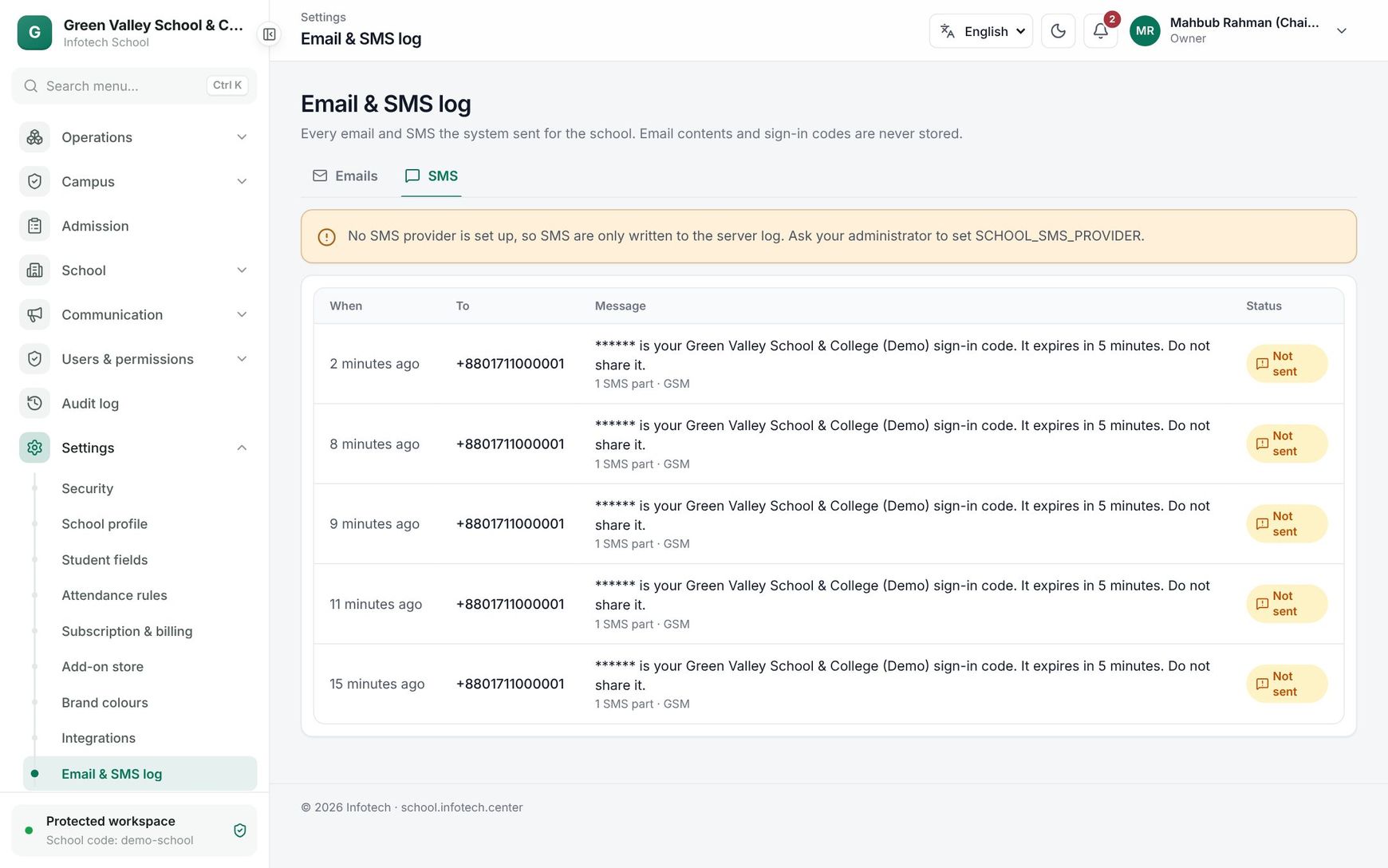 The SMS tab of the Email & SMS log
Good to know
- Notifications are personal: nobody can see another person's bell.
- A notification for a user who has been switched off is not delivered.
- If a mail server is slow or down, the app keeps working; delivery happens in the background and is retried after a restart.
Examples
"My invitation never arrived." A new teacher, Farhana Islam, says she got no email. The principal opens Settings › Email & SMS log, Emails, and finds her Invitation with status Sent, but to farhana.islam@gmial.com: the address was mistyped. He corrects her email in Users & permissions › Users and chooses Resend invite.
Checking a fee receipt SMS. A guardian says he got no SMS after paying Tk 2,500. On the SMS tab the office finds the receipt SMS to his number with status Failed. The school had run out of SMS credits; after Infotech adds credits, new receipts go out again. The payment itself is safe and shows in his Fees page in the app.
Last updated 30 Oct 2026