Notices and the notice board
Notices replace the paper circular and the notice on the wall. You write a notice once, choose who it is for (staff, guardians, students, the whole school or some classes), and publish it. Everyone it is for sees it in their notification bell and on the Notice board, on the web and in the mobile app, and you can see who has read it. For urgent news you can also send an SMS alert.
Writing and publishing notices is under Communication › Notices and needs the notice:write permission: the Owner, Principal and Office admin roles have it. The Notice board is in everyone's sidebar. Notices are part of every plan.
The notices list
Open Communication › Notices. The top shows the number of Notices and the school's SMS Credits left. Each notice shows its category, a pin when it is pinned, Draft until it is published, the date, and for published notices how many people have read it, for example "212 of 340 read".
Write a notice
- Choose New notice.
- Under Notice, fill in:
| Field | What it does |
|---|---|
| Title | Up to 200 characters. Also the text of the SMS alert |
| Category | Notice, Circular, Event or Emergency |
| Show until | Optional: the notice is hidden from the board after this day |
| Text | The notice itself, up to 20,000 characters |
| Pin to the top | Pinned notices stay first on the notice board |
- Under Who is it for, choose the people: Staff, Guardians, Students (one or more). For guardians and students, choose Whole school or Some classes or sections, then tick the Classes, or Sections (of other classes) for single sections.
- Choose Save draft. The preview on the right shows the notice as readers will see it, and the checklist shows what is still missing (A title, The text, Who it is for).
- Once saved, an Attachment section appears: drop a PDF, image, Word or Excel file (for example the exam routine) to attach it.
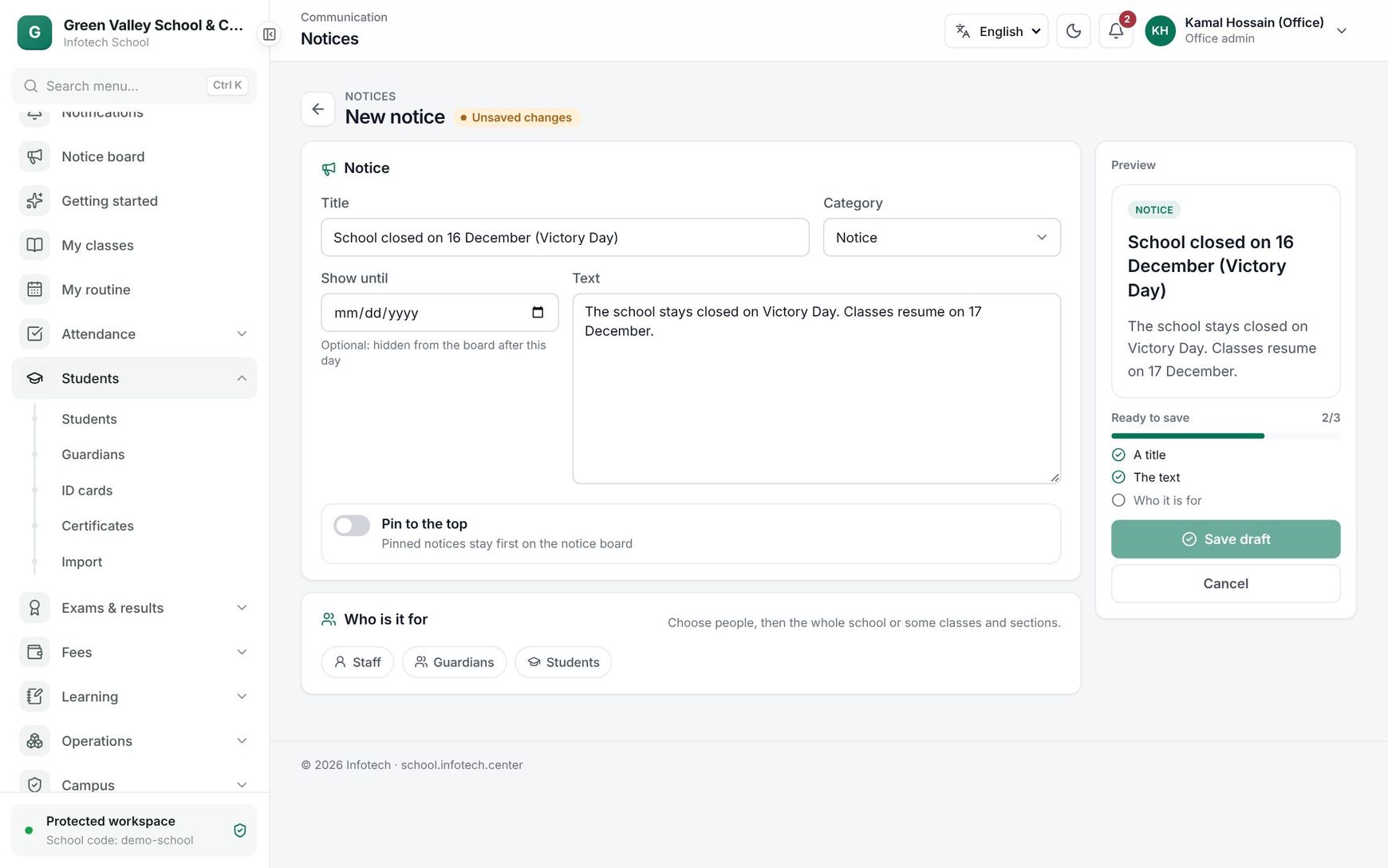 Writing a notice, with the audience picker and preview
Publish
Save your changes first, then choose Publish. The Publish notice window shows:
- People reached in the app: everyone in the audience who has an account.
- Mobile numbers (one per family): the numbers an SMS alert would go to.
- Also send an SMS alert: tick it to send an SMS too. Below it you see the cost, for example "1 SMS part(s) each · 180 credits of 2,450". If credits are short, you see "Not enough SMS credits" and cannot tick it.
Choose Publish. Everyone in the audience gets a notification in the bell (and a push notification on their phone), and the notice appears on their notice board. With the SMS alert, guardians (one number per family) and, if the audience includes staff, staff get an SMS such as "Green Valley School: School closed on Thursday. Details in the app or at the school." Students do not get SMS.
The notice page then says "Published … to 340 people". A notice can be published only once.
Read receipts
On a published notice, the right side shows "Read by 212 people", with each reader and whether they are Staff, Guardian or Student. Until someone opens it, it says "Nobody has opened it yet." A notice counts as read when the person opens it on the board.
The notice board
Everyone opens Notice board in the sidebar. In the mobile app, the home screen shows the latest three Notices; See all opens the Notice board. It shows the published notices for them, pinned first, then newest first, with the number of new notices at the top. Opening a notice shows the full text and a Download button for the attachment. Notices past their Show until day are hidden.
Staff with notice:write see every published notice on the board, whoever it is for.
Change or delete
You can still correct a published notice; the change shows on everyone's board, but nobody is notified again. To remove a notice, open it and choose the bin, then confirm Delete notice: "It disappears from everyone's notice board."
Good to know
- An SMS alert uses the school's SMS credits; the in-app notice is free. See SMS.
- Guardians and students see only notices for their own child's or their own class and section (or the whole school).
- Publishing is written to the Audit log, with the audience, the number of people and the number of SMS.
Examples
A holiday notice for everyone. The office admin writes "School closed on 16 December (Victory Day)", category Notice, Show until 17 December, for Staff, Guardians and Students, Whole school. She publishes without SMS: everyone sees it in the app.
An emergency for one class. Heavy rain floods the road to the school. The principal writes "Class Eight B: no classes tomorrow", category Emergency, Pin to the top, for Guardians in Some classes or sections with section Eight B ticked. In Publish notice she ticks Also send an SMS alert: 46 families, 46 credits. Every guardian of Eight B gets the SMS within minutes.
Last updated 30 Oct 2026