Results and mark sheets
The Results page turns the marks into results. The exam office works out a class's results as a draft, checks the tabulation sheet and the analysis, and the principal publishes them. Guardians and students then see the mark sheet in the app and get a message. A published result never changes: a correction is published as a new version, and the earlier versions stay on record.
Open Exams & results › Results. It needs the Exams & results module.
| What | Who (by default) | Permission |
|---|---|---|
| See results, tabulation and analysis, print mark sheets | Owner, Principal, Office admin, Teacher | exam:read |
| Work out results | Owner, Principal, Office admin | exam:manage |
| Publish | Owner, Principal | result:publish |
Choose what to look at
Pick the Year, the Exam and the Class. You can narrow the list to one Section (or All sections). Once a class has published results, a Version filter lets you look at an earlier version; Latest is the default.
Work out results
- On the Exams page, choose Close mark entry. Results cannot be worked out while mark entry is open.
- Here, choose Work out results. The page says "Results worked out for 120 students".
- If some marks are missing, a warning says "3 students have missing marks — their results cannot be published yet" and lists them, for example "Roll 4 Rahim: Mathematics". Get the marks entered (reopen mark entry if needed), close it again and work out the results again.
You can work out results as often as you like: it only replaces the draft.
Check the tabulation sheet
The Tabulation sheet tab shows the status, the version and "112 of 120 passed".
| Status | Meaning |
|---|---|
| Draft — not published | Worked out; only staff can see it |
| Published | Guardians and students can see it |
| Not worked out | No results yet |
| Column | Shows |
|---|---|
| Pos. | Merit position in the class |
| Roll, Student, Section | The student |
| One column per subject | Marks and grade (Abs for absent) |
| Total, GPA, Grade | The overall result |
| Result | Passed or Failed |
Merit order: students who passed come first, by GPA, then total marks, then roll. Students who failed follow, by fewest failed subjects, then total marks, then roll. Every position is unique.
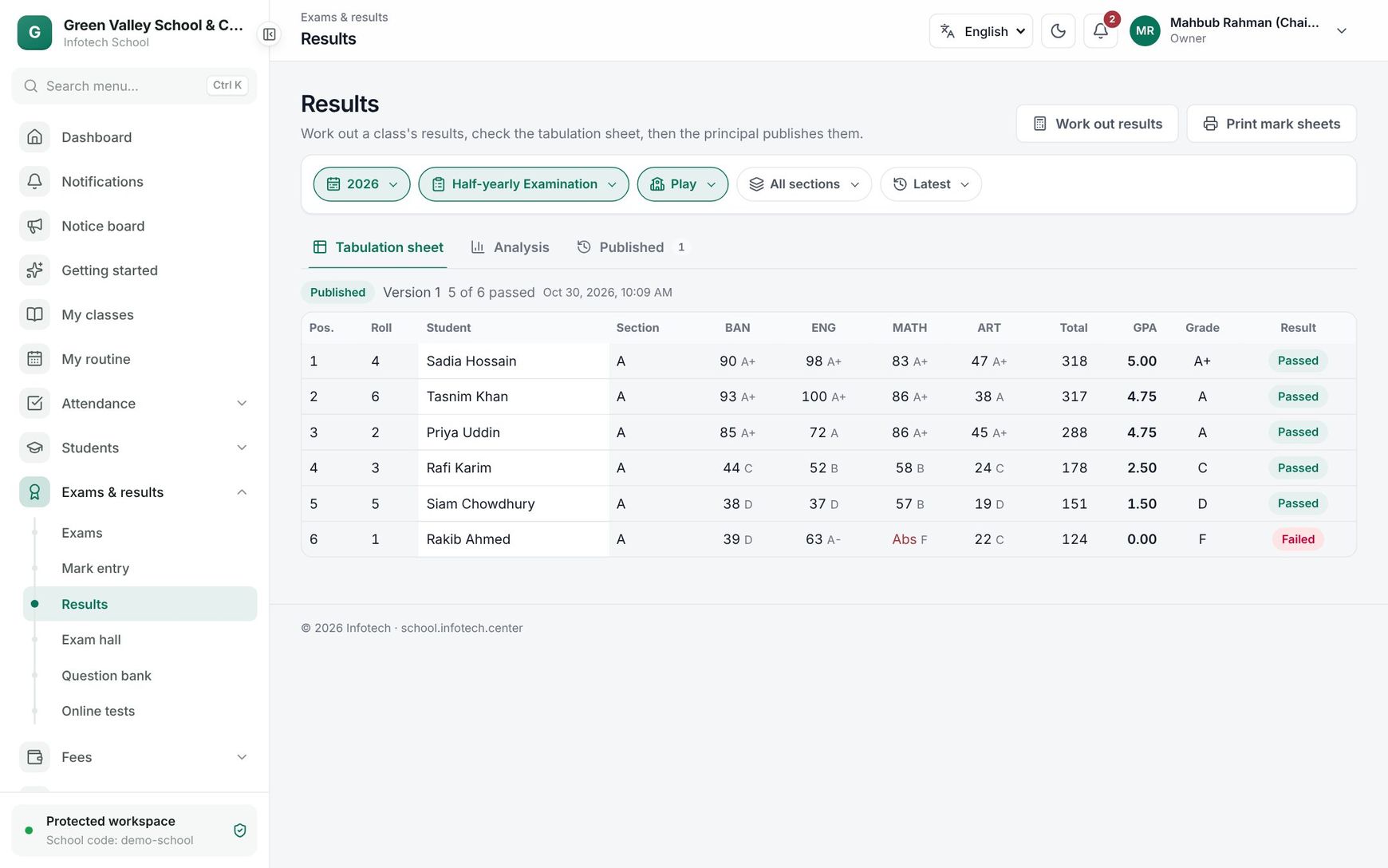 The tabulation sheet of a class
The Analysis tab shows Students, Passed, Pass rate and Average GPA, the Grades spread, results By section, and By subject with the Teacher, Pass rate, Average and Highest. Use it at the result meeting.
Publish
- Choose Publish (it shows while the class has a draft).
- The Publish results dialog says, for example, "120 students, 112 passed. Guardians and students see the mark sheets and get a message."
- Optionally add a Note (optional).
- Tick Also text the GPA to each family to send an SMS to each student's primary guardian. It uses one SMS credit per family (see SMS).
- Choose Publish.
Each guardian and student gets an in-app message with a push to the phone; tapping it opens the mark sheet. Students with missing marks block publishing: complete them first.
Publish a correction
- On the Exams page, choose Open mark entry again, correct the marks, and close mark entry.
- Work out results again. This makes a new draft, version 2.
- Choose Publish. The dialog is now Publish corrected results and needs a Reason for the correction.
Families get a "corrected result" message. The Published tab lists every version with its date, who published it, how many passed and the reason. An exam with published results cannot go back to draft or be deleted.
Print mark sheets
Choose Print mark sheets to print one A4 Mark sheet per student of the chosen section (or the whole class). Each sheet shows the student, Student ID, Roll, Class, Section and Version; a row per subject with Full marks, Obtained, Highest, Grade and Point; then Total, GPA, Result and Position, the grading scale, and signature lines for the Class teacher and the Head of institution.
A QR code on each published sheet lets anyone check it (see Public result check and verification). A sheet that is not published is marked Draft, and an older version is marked Corrected.
What guardians and students see
Guardians and students open Results in the menu (web and mobile app). Each published result shows the grade, the exam, the child's name, the GPA, Position in the class, the date and Passed or Failed. A guardian with several children can pick one under Child or see All. Click a result to see the full mark sheet and Print it. Only the latest published version is shown.
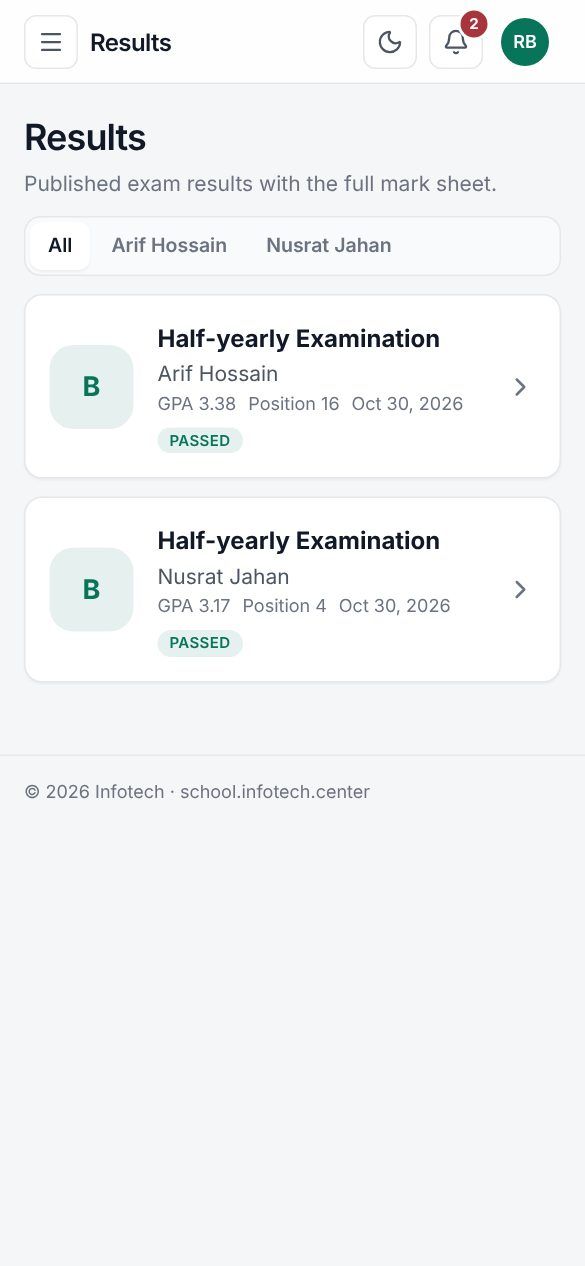 A guardian's results list
Examples
Half-yearly results of Class Eight. On the last day of mark entry, the exam office closes the exam, chooses Class Eight and Work out results. Two students have missing marks in Science; the teacher enters them, the office works out the results again, and Principal Abdul Karim checks Analysis, then publishes with Also text the GPA to each family ticked. 150 families get "GPA 4.25" by SMS, using 150 credits.
A wrong mark after publishing. Nusrat Jahan's Mathematics mark was typed as 38 instead of 83. The office reopens mark entry, corrects it, closes it and works out the results again. The principal publishes version 2 with the reason "Mathematics mark of roll 12 corrected". Her old printed mark sheet now checks as superseded.
Last updated 30 Oct 2026