Library
The library pages run the school library: a catalogue of books with numbered copies, issuing and taking back books by scanning, renewals, late fines, lost books and reminders to families. Guardians and students see their books under Library books.
Who can use it: the Library menu needs the Library module in the school's plan (see Subscription and store) and the permission to run the library. The Librarian role has it, and so do the Owner, Principal and Office admin. See Users and roles.
Set the rules first
Open Operations › Library and the Rules tab, then choose Save.
| Field | What it does | Default |
|---|---|---|
| Loan days (students) / Loan days (staff) | How long a book can be kept | 14 / 30 |
| Books at a time (students) / Books at a time (staff) | How many books a member can have out | 2 / 5 |
| Renewals allowed | How many times one loan can be renewed | 2 |
| Fine per late day | Charged for each day after the due date | 2 |
Build the catalogue
On the Catalogue tab, choose Add a book. Fill in Title (required), Author, Publisher, ISBN, Edition, Category, Language, Shelf, Published year and Copies (how many copies you have, up to 200 at a time). Choose Save.
Each copy gets its own accession number from the school's register: ACC-000001, ACC-000002 and so on. The list shows Title, Category, Shelf and Copies, for example "3 of 5 in". Search by title, author or ISBN.
Click a book to open it. There you can:
- Add copies to the book, then choose Add.
- Print labels: a page of spine labels with each copy's accession number as a barcode and the title.
- Edit book.
- Change a copy's status to Available, Lost, Damaged or Withdrawn. A copy that is On loan shows who has it and when it is due; take it back before changing its status.
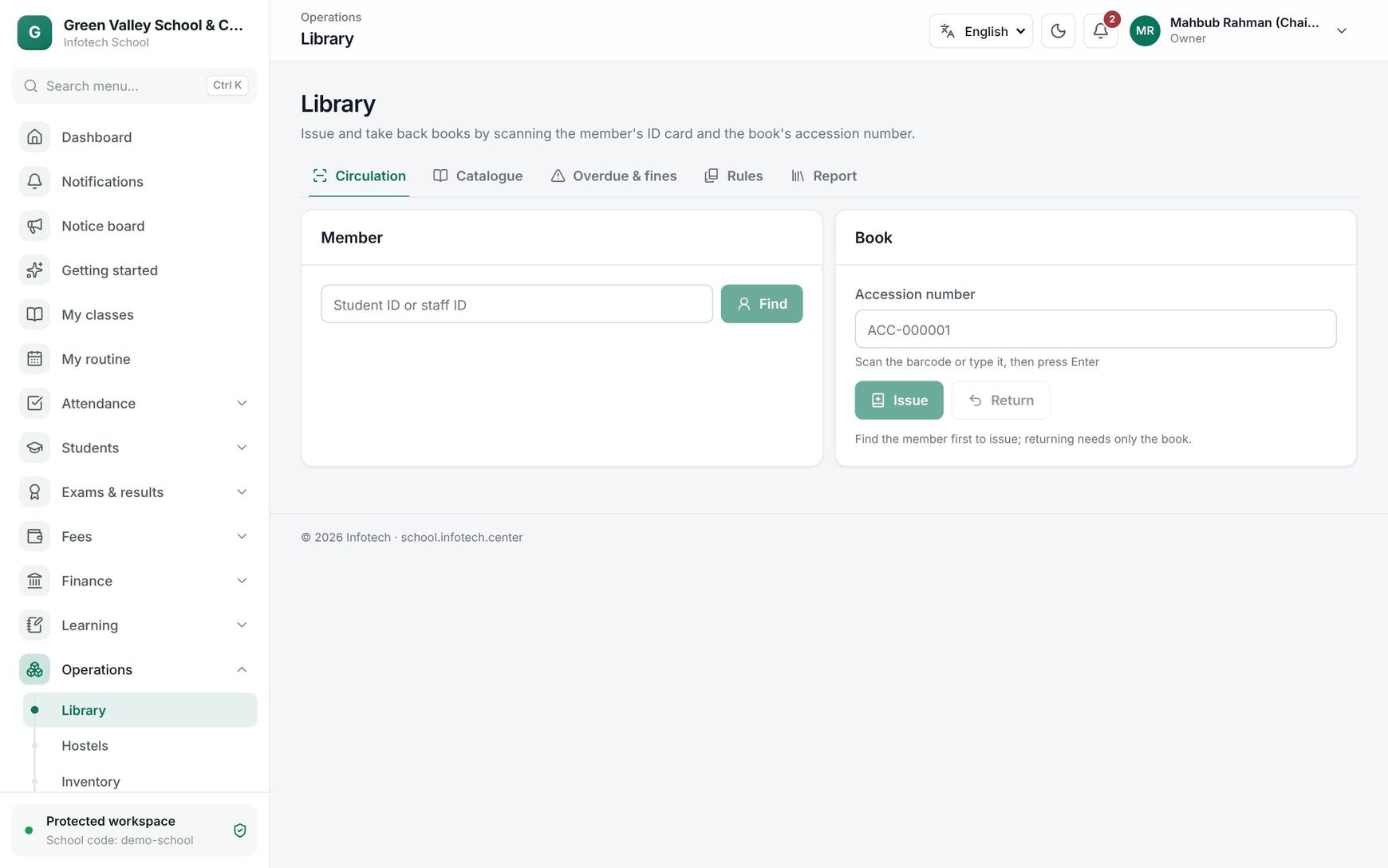 The Circulation tab with a member found and the accession number box
Issue and take back books
Use the Circulation tab at the desk. A barcode scanner works like a keyboard, so you can scan or type.
To issue a book
- Under Member, scan or type the Student ID or staff ID and choose Find. You see the member's name, class roll or designation, "1 book out of 2 allowed" and any Fines due.
- Under Book, scan the Accession number and press Enter (or choose Issue).
- A box confirms Issued with the due date.
To take a book back, scan its accession number and choose Return. You do not need to find the member first. The box shows Returned with On time, or the days late and the Fine.
Tip: Pressing Enter in the accession box issues when a member is shown, and returns when no member is shown.
A book is refused at the desk when:
- the copy is not available ("This copy is not available to issue."),
- the member has an overdue book ("The member must return the overdue book first."),
- the member already has as many books as allowed.
Renew or mark a book lost
When a member is found, each book they have out has two buttons:
- Renew sets a new due date: today plus the loan days. An overdue book cannot be renewed; it must be returned. A loan can be renewed only as many times as Renewals allowed.
- Lost opens Book lost. Enter the Replacement charge and choose Mark lost. The loan closes with the charge plus any late fine, and the copy is marked Lost.
Overdue books and fines
The Overdue & fines tab has three views: Overdue, Fines to collect and All out. Columns are Book, Member, Due (with days late) and Fine.
Under Fines to collect, choose Paid when the member pays at the desk, or Waive to cancel the fine (you are asked to confirm). Both are written to the audit log.
The Report tab shows Titles, Copies, On loan, Overdue, Lost, Fines due and Fines collected this year.
Reminders
Every morning the school sends in-app reminders for library books:
- Book due tomorrow, the day before the due date.
- Book overdue, on the first day late and then once a week until the book comes back.
They go to the borrower (when they have a sign-in) and, for a student, to the guardians. See Notifications and message log.
Library books (guardians and students)
Guardians open Library books (and the Library books tile in the mobile app). With more than one child, pick the child at the top. Each book shows the due date or the date it was returned, a Borrowed or "days late" badge, and the Fine when one is due.
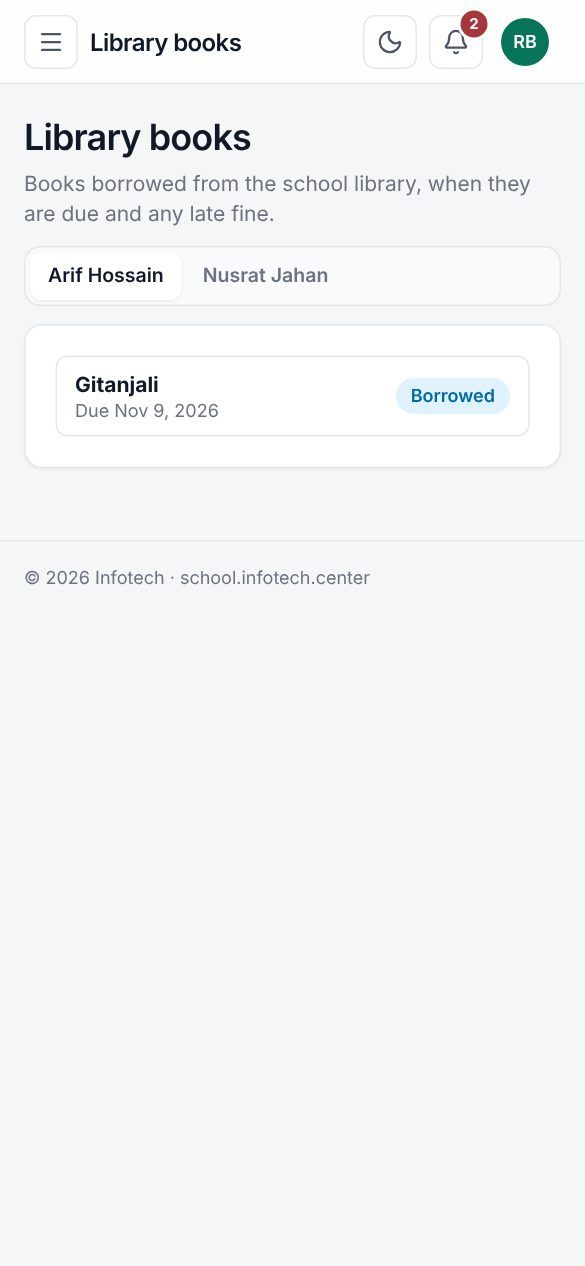 A guardian's Library books page
Good to know
- The late fine is Fine per late day times the days after the due date. While a book is out the fine keeps growing; it is fixed when the book is returned.
- Changing the rules does not change books already issued; new loans and renewals use the new loan days.
- A copy marked Lost or Withdrawn stays in the catalogue. Set it back to Available if it turns up.
Example
The librarian of a Dhaka school issues Pather Panchali (ACC-000014) to Arif Hossain of Class Six A on 1 March: due 15 March. Arif returns it on 18 March, 3 days late, and the desk shows a fine of Tk 6. His mother Rahima Begum got a Book due tomorrow message on 14 March and a Book overdue message on 16 March. Arif pays the Tk 6, and the librarian marks it Paid under Fines to collect.
Last updated 30 Oct 2026