Promotion
At the end of the year every class moves up together. Promotion does this one class at a time: students who passed go to the next class, those who failed repeat, and students in the last class graduate. New roll numbers follow the merit list, the way Bangladeshi schools do it: first in the class gets roll 1. You see and can change every row before anything is saved.
Open Students › Promotion. You need the student:promote permission, which the Owner and Principal roles have by default.
Before you start
- Publish the annual results, so each student has a pass or fail and a class position (see Results).
- Create next year's academic year and its sections in Classes and subjects. Without a second year the page says "Create next year's academic year and its sections first."
- Make sure the classes are in the right order, so the page knows which class comes next.
Make a promotion list
Choose the filters at the top:
| Filter | What to choose |
|---|---|
| From year | The year that is ending |
| Class | The class to promote, for example Class Six |
| Based on | Latest annual result (each student's latest published annual result of that year), or one exam |
| To year | The new year |
The page shows the move, for example "Class Six → Class Seven", or "Class Ten is the last class: students graduate." Tiles count the rows by action: Promote, Repeat class, Graduate and Already placed.
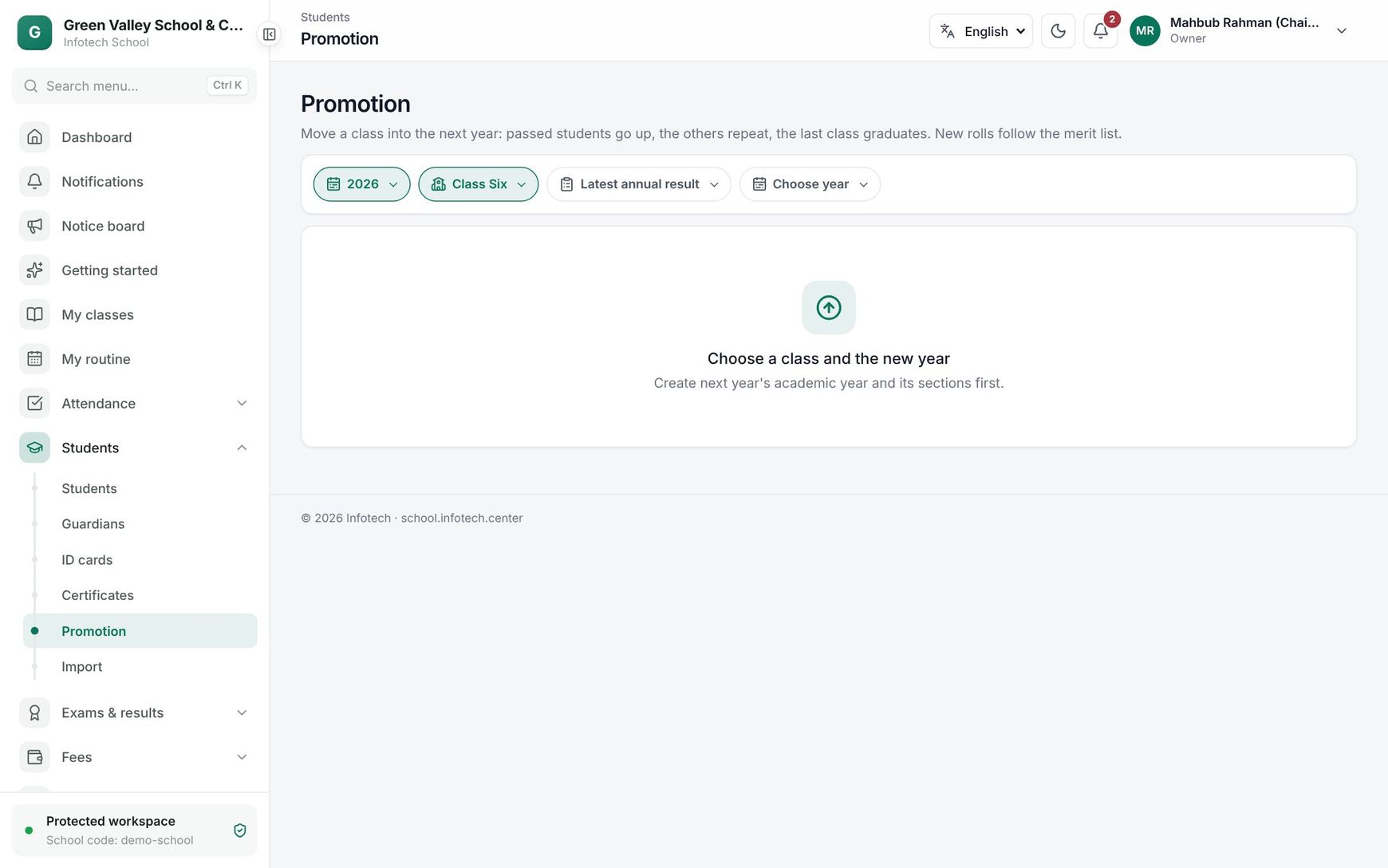 A promotion list for one class
The table lists the whole class in merit order:
| Column | Shows |
|---|---|
| Pos. | Class position from the result |
| Student | Name, old section and roll |
| Result | GPA and grade (green if passed, red if failed), or No result |
| Action | What happens to the student; you can change it |
| New section | The section in the new year |
| New roll | The suggested roll; you can type another |
What the page suggests:
| Situation | Suggested action |
|---|---|
| Passed | Promote, to the section with the same name (A to A) or else the first section of the next class |
| Failed | Repeat class, in the same class of the new year, with rolls after the promoted students |
| No result | Promote (check these rows yourself) |
| Last class | Graduate |
| Already in a section of the new year | Already placed (cannot be changed) |
Change any row you need to. Choose Skip for a student who should not be moved now, for example one whose family has not decided. Every promoted or repeating student needs a section; until then the page says "Choose a section for every promoted or repeating student."
Apply
Choose Apply promotion and confirm. The message says how many students will be placed in the new year. When it is done you see, for example, "Done: 38 promoted, 2 repeating, 0 graduated, 1 skipped."
- Promoted and repeating students are enrolled in their new section and roll; their old class stays in their Class history.
- Graduating students get the status Graduated with the reason "Completed the last class".
- Students already placed in the new year are skipped, so applying twice changes nothing.
- A promoted student can only go to the next class, and a repeating student only to the same class. If a section is wrong, or a roll you typed is already taken, nothing is saved and you see the problem.
Tip: Skipped students stay in the old year. You can promote them later from this page, or enroll them from their record (see Students).
Good to know
- Promotion does not change results, fees or attendance of the old year.
- To promote a whole school, repeat the steps for each class.
Examples
Class Six to Class Seven. Class Six has sections A and B with 80 students. With Latest annual result, 77 passed and 3 failed. The principal checks the list, moves one boy from section B to A at his parents' request, and applies. The 77 go to Class Seven A and B with rolls 1 to 77 by merit; the 3 repeat Class Six.
Class Ten graduates. After the SSC test results, the principal chooses Class Ten. Every row shows Graduate. One student is still waiting for a re-examination, so the principal sets her row to Skip and applies for the rest.
Last updated 30 Oct 2026