Brand colours
Brand colours lets you give the app your school's colour: buttons, links, the active menu item and highlights change to it for everyone at your school, on the web and in the mobile app. Pick one of ten ready palettes or use your own colour.
Open Settings › Brand colours. It needs the branding:manage permission, which the Owner and Principal have. It is also the optional last step of Getting started.
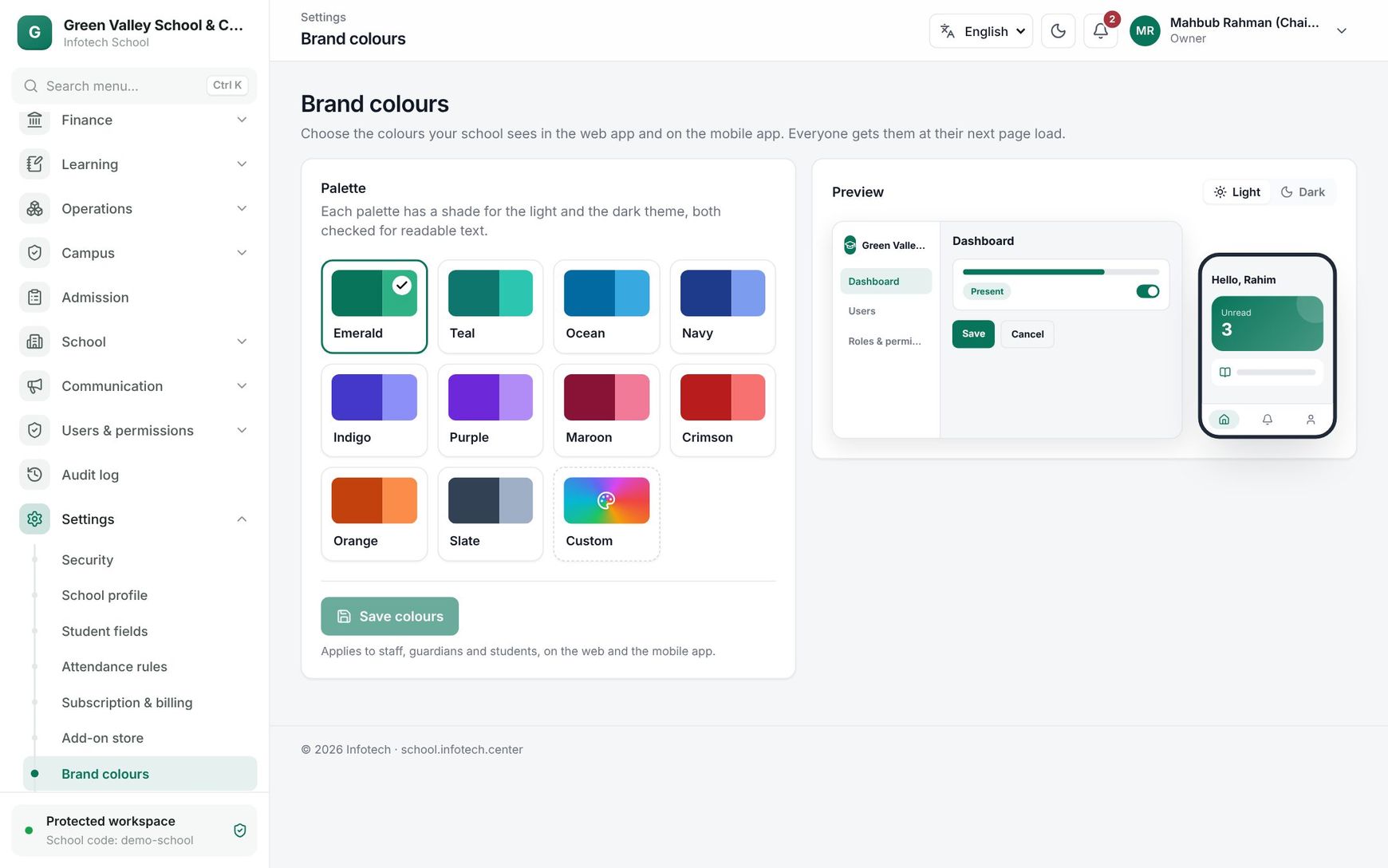 Palettes on the left and the live preview in light and dark theme on the right
Choose a palette
Under Palette, click a colour. Each palette has a shade for the light theme and a lighter shade for the dark theme, both checked so that text stays readable.
| Palette | Light theme colour |
|---|---|
| Emerald | #08755a |
| Teal | #0f766e |
| Ocean | #0369a1 |
| Navy | #1e3a8a |
| Indigo | #4338ca |
| Purple | #6d28d9 |
| Maroon | #881337 |
| Crimson | #b91c1c |
| Orange | #c2410c |
| Slate | #334155 |
The page changes colour straight away so you can see it, and the Preview on the right shows a small app screen. Switch Theme between Light and Dark to check both.
Choose Save colours to keep it, or Undo to go back to the saved colours. If you leave without saving, the page goes back to the saved colours.
Use your own colour
Choose Custom and enter Your colour as #rrggbb, for example the green of your school badge, #1b5e20. Under it, Readability of white text shows how readable white button text is on that colour, as a ratio such as "7.9 : 1".
| Message | Meaning |
|---|---|
| "Readable: passes the WCAG AA standard." | The colour is dark enough; you can save it |
| "This colour is too light for white text on buttons. Choose a darker shade." | The ratio is below 4.5 : 1; Save colours stays off |
| "Give the colour as #rrggbb, e.g. #1e3a8a." | The value is not a valid colour |
Tip: Yellow, light green and sky blue are usually too light. Take a darker shade of the same colour, for example
#b45309instead of#facc15.
Who sees it
The colours apply to staff, guardians and students, on the web and the mobile app. People see them at their next page load, or the next time the mobile app loads their account. Each person's own light or dark theme choice stays theirs.
The change is recorded in the Audit log as "School colours changed".
Good to know
- Brand colours change only the accent colour. Your logo and name are set on School profile.
- Choosing a palette is not a security risk: nobody can pick a colour that makes buttons unreadable, because the server checks the contrast too.
Example
Motijheel Model School's badge is maroon. The principal opens Brand colours, clicks Maroon, checks the preview in Dark theme, and chooses Save colours. When teachers open the app the next morning, buttons and the selected menu item are maroon, and guardians see the same colour on their phones.
Last updated 30 Oct 2026