Mark entry
Mark entry is where teachers type the marks of the papers they teach while an exam is open, and submit each sheet when it is complete. The exam office can open any sheet, correct marks and reopen a submitted sheet. The marks feed straight into the Results.
Open Exams & results › Mark entry. You need marks:enter (Teacher and Principal by default) or exam:manage (Owner, Principal, Office admin), and the Exams & results module.
Which sheets you can fill
A teacher can fill a sheet when they are:
- the teacher of that subject in that section, or
- the class teacher of the section (all its papers).
The exam must be Open for marks (see Exams, papers and grading).
My papers
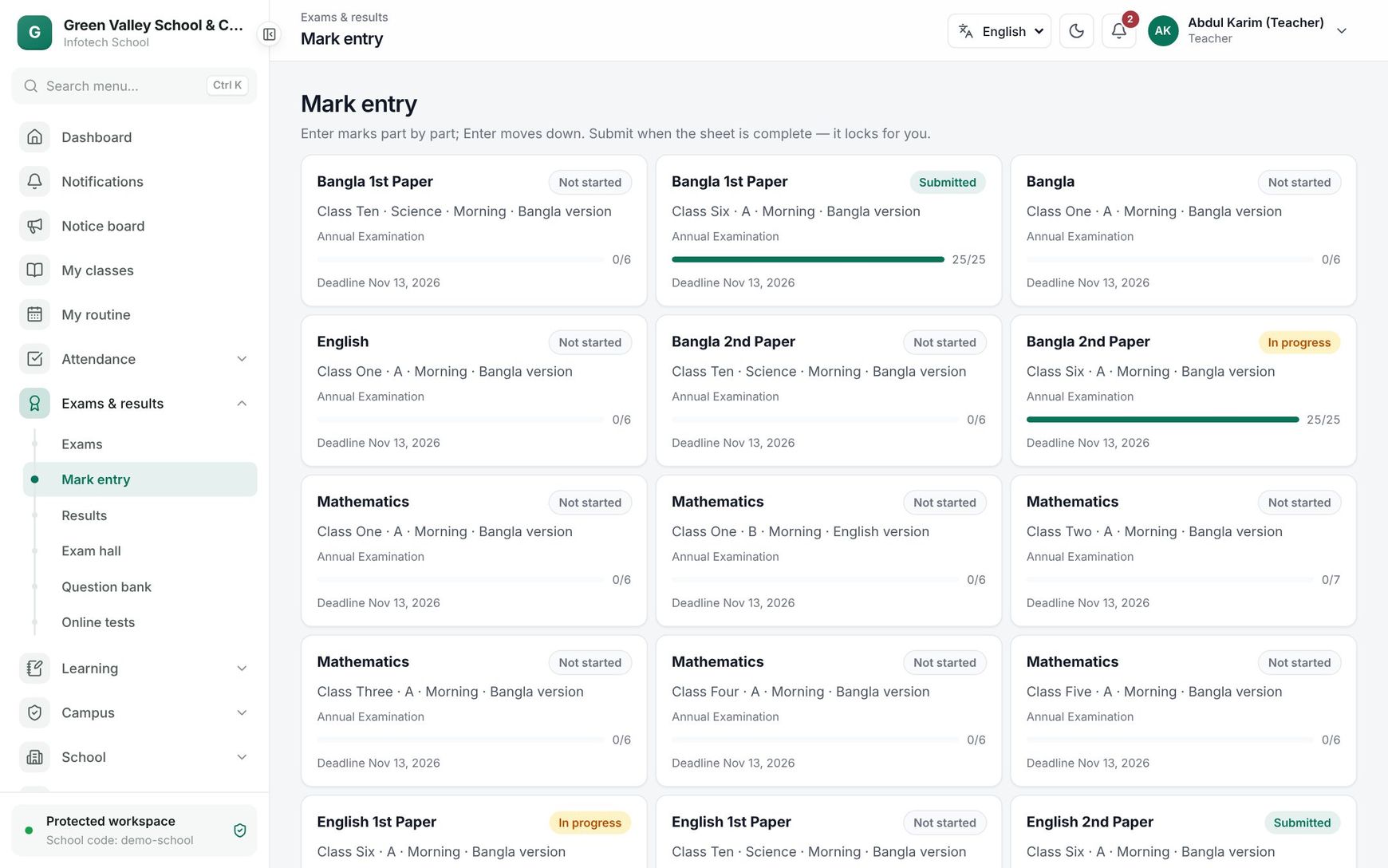
Teachers see a card for each paper and section of the open exams they mark. Each card shows the subject, the section, the exam, the status, a bar with how many students have marks (for example 28/40) and Deadline with the date.
| Status | Meaning |
|---|---|
| Not started | No marks yet |
| In progress | Some marks saved, not submitted |
| Submitted | The teacher submitted the sheet; it is locked for them |
If nothing shows, the page says No papers to mark.
The exam office has two tabs: My papers and Any paper. On Any paper, choose the exam, class, section and subject (Choose subject), then Open mark sheet. Final results do not appear here, because they have no marks of their own.
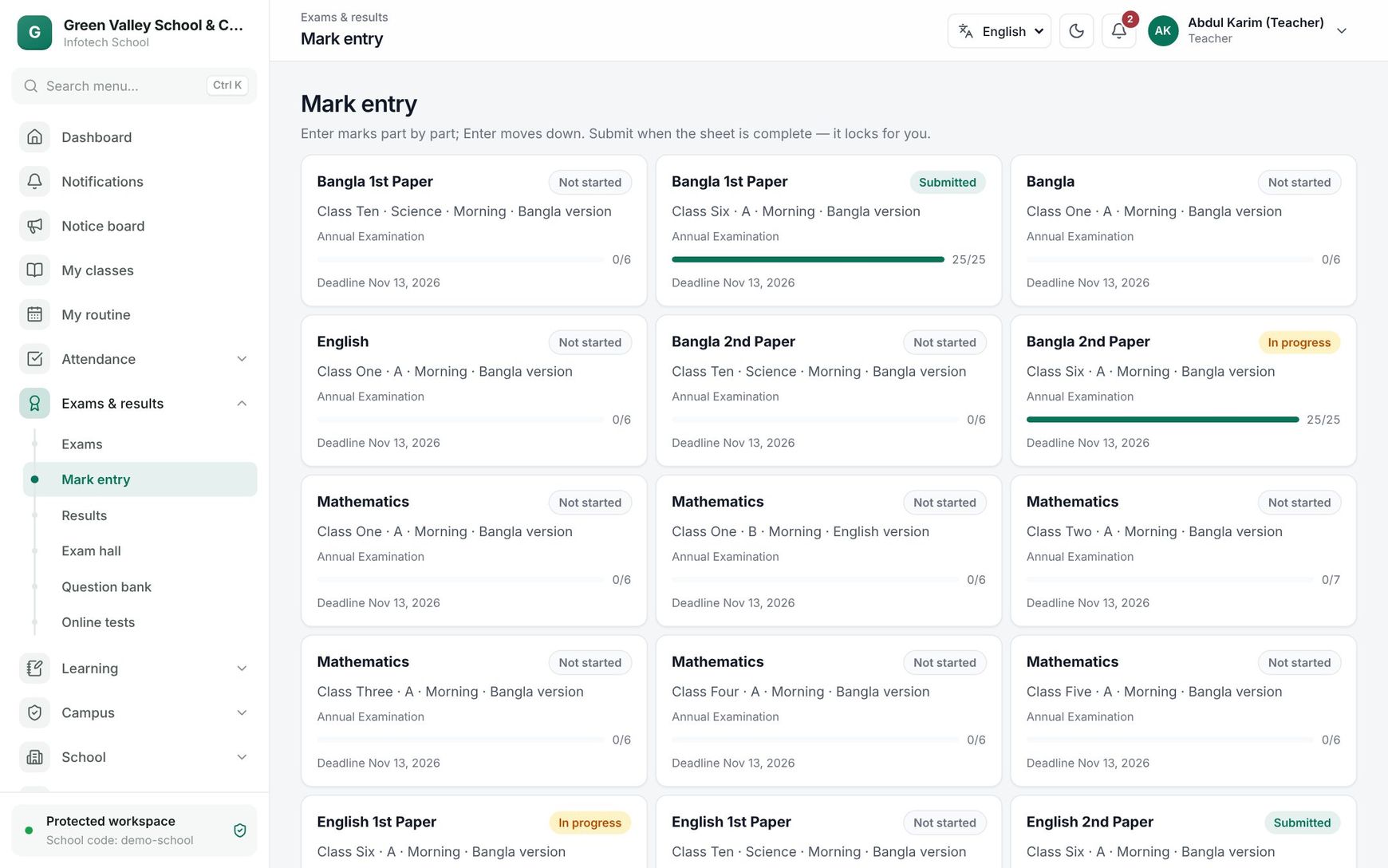 A teacher's papers to mark
Fill in a mark sheet
Click a card. The sheet shows how many students have marks ("31 of 40 entered") and the deadline. Its columns:
| Column | What to enter |
|---|---|
| Roll, Student | The section's students in roll order |
| One column per part | The marks of that part, for example CQ and MCQ. Numbers only, up to two decimals, from 0 to the part's full marks |
| Absent | Tick for a student who missed the paper. Absent counts as 0 |
| Total | Worked out as you type (Abs for absent) |
- Type the marks. Enter moves down to the next student, ↑ moves up.
- A wrong mark is outlined; the page says Fix 2 wrong marks first until you correct it.
- Choose Save (12): the number is how many rows you changed. Save as often as you like.
- When every student has marks or is marked absent, choose Submit. At Submit this sheet? check the count and confirm. The sheet is now locked for you.
To remove a student's marks, clear all their parts and leave Absent unticked, then save.
Optional paper: an elective or 4th subject shows the Optional paper badge. Leave a student blank if they do not take it; you can submit with those rows empty.
Use Excel instead
- Choose Download sheet. You get an Excel file with Roll, Student ID, Name, one column per part, and Absent.
- Fill in the marks.
- Choose Upload filled sheet (Excel or CSV). Save your changes on screen first.
Students are matched by Student ID (or roll) and parts by their column code. Rows without marks are left as they are. If any cell is wrong, the whole file is refused with the line numbers, so nothing is half imported.
 A mark sheet with CQ and MCQ columns
After submitting
The teacher sees "You submitted this sheet. Ask the exam office if something must change."
The exam office sees "Submitted by the teacher. You can still correct marks (logged) or reopen the sheet." To hand it back to the teacher:
- Choose Reopen.
- Write the reason under Why reopen? (at least 3 characters).
- Choose Reopen. The teacher sees "Reopened: " and the reason, and can change and submit again.
Good to know
- Marks can be entered only while the exam is open. Otherwise the sheet says This exam is not open for mark entry.
- After the Mark entry deadline, teachers can no longer change marks; the exam office still can.
- Every save and every submission is recorded in the audit log, with who did it.
- Submitting is refused while a student of a normal paper has neither marks nor Absent: "Some students have no marks yet — enter them or mark them absent."
- Teachers can also enter marks from the phone (see Mobile app).
Examples
Mathematics in Class Seven B. Kamal Hossain teaches Mathematics in Class Seven B. The paper has CQ (70, pass 23) and MCQ (30, pass 10). He opens the card, types the CQ and MCQ marks of 42 students, ticks Absent for roll 17, chooses Save (42) and then Submit.
A correction after submitting. The headmaster notices that roll 9 of Class Six A got 45 instead of 54 in English. The exam office opens the sheet on Any paper, corrects the mark and saves. The change is logged. If they prefer the teacher to check the whole sheet, they choose Reopen with the reason "Check roll 9 English".
Last updated 30 Oct 2026