Online fee payment
Guardians can see what each of their children owes and pay online with bKash, Nagad or a card, from the web app or the mobile app, without coming to the school. The money goes straight into the school's own merchant account; it never passes through Infotech. Every payment is checked with the provider before it counts, and the receipt appears at once.
What the school sets up
- Get a merchant account from bKash, Nagad and/or SSLCommerz.
- Enter its credentials in Fees › Fee setup › Payment gateways, untick Sandbox (test mode) once the live account is approved, tick Take payments and Save (see Fee setup).
- Make sure guardians have an account linked to their children (see Guardians).
If no gateway is switched on, guardians still see their dues, with "Pay at the school office" instead of a pay button.
Paying on the web
A guardian signs in and opens Fees in the sidebar (shown to guardians and students when the plan includes the Fees module). A student account sees its own fees in the same way.
- Each child has a card with the amount due, the open invoices and past Receipts. Every open invoice shows its due date, any late fine and its status (Unpaid, Part paid or Overdue).
- All open invoices of all children are ticked. Untick the ones you don't want to pay now.
- The bar at the bottom shows To pay and the total. Under Pay with, choose bKash, Nagad or SSLCommerz.
- Choose Pay now. You go to the provider's payment page, pay there, and come back to Fees.
A message at the top tells you how it went:
| Message | Meaning |
|---|---|
| Payment received. Thank you! | Paid. The receipt is in the list |
| Waiting for the payment to finish… | The provider has not confirmed yet. The page checks again by itself |
| The payment failed. No money was taken. | Try again, or pay at the office |
| The payment was cancelled. | You cancelled on the provider's page |
Click a receipt to open it and choose Print.
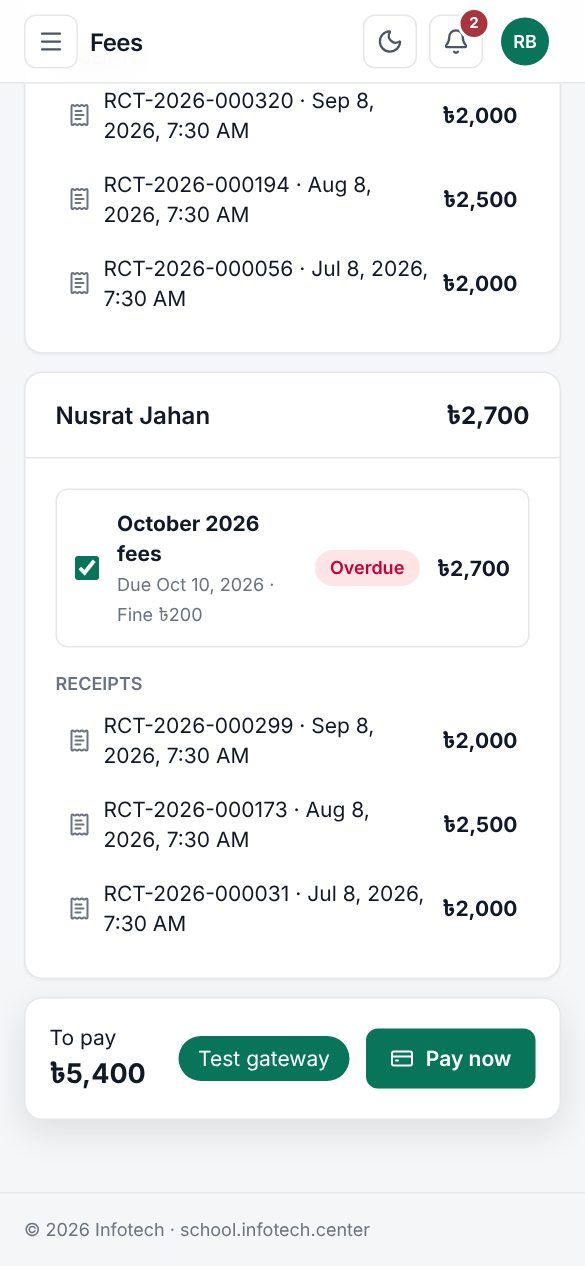 A guardian's Fees page with two children and the pay bar
Paying in the mobile app
In the app, open Fees. The screen shows the Total due, each child's invoices with "Due" dates, any "Late fine" and "Paid so far", and the receipts. Tick what to pay, choose Pay with the amount, then under Pay with pick bKash, Nagad or Card, Rocket or other (SSLCommerz). The provider's page opens; after paying, come back to the app.
The app then shows Payment received, Waiting for the payment… ("Finish paying in bKash, then come back. This page updates by itself."), The payment did not go through or The payment was cancelled. Use Check again if it is still waiting, and Back to fees to return. See Mobile app.
How payments are confirmed
- When the guardian comes back, the server asks the provider directly whether the payment went through. A payment only counts after the provider confirms it.
- The amount must match exactly. If the provider reports a different amount, the payment is marked failed and written to the audit log for the office to check.
- If the guardian closes the browser or loses the network, the app asks the provider again every few minutes. A payment that is not completed within a day is marked failed.
- However often the provider calls back, a payment is recorded only once.
- One payment can cover several children. Each child gets their own receipt, paying that child's invoices oldest first.
- Online payments are posted to the school's finance books like counter payments, and the family gets an in-app message (and an SMS receipt if the school has switched that on).
To check online payments against what the provider actually paid into your account, use the Reconciliation tab in Fee reports.
Good to know
- Online, a guardian pays the full amount due on the invoices they tick, fines included. Part payments are taken only at the counter.
- If the office collected the same invoice in the meantime, the app answers that some of these fees were already paid; refresh and pay what is left.
- The Test payment gateway appears only on demo and test servers. It moves no real money.
Examples
Two children, one payment. Salma Akter has a son in Class Three B and a daughter in Class Seven A. In the app she sees Tk 1,200 and Tk 1,800 due for November, keeps both ticked, chooses Pay ৳3,000.00 and bKash, and pays in the bKash page. Back in the app she sees Payment received; each child's card now has its own receipt.
A dropped connection. A father pays with Nagad, but his phone loses the network before returning to the app. Nagad has taken the money. A few minutes later the server asks Nagad, gets the confirmation, and records the payment; the receipt appears in his Fees screen.
Last updated 30 Oct 2026