Automatic routine generator
The routine generator works out every section's weekly routine for you from its subjects and teachers. It follows the hard rules (no teacher in two places, no classes in breaks, no section with two classes at once) and tries to spread each subject over the week. Nothing is saved until you look at the result and apply it, so you can try it as often as you like.
It is the Generate tab of School › Class routine. You see the tab when your school's plan includes the Routine generator module (the Standard and Premium plans, or as an add-on, see Subscription and add-on store) and you have routine:write (Owner, Principal, Office admin).
What it needs first
- Periods for every shift on the Periods tab. Without them you get "Set the periods of each shift first."
- A current academic year with sections. Otherwise: "There are no sections in the current year."
- A teacher for each subject of each section, set in School › Classes & subjects (see Classes and subjects). A subject with no teacher is left out of the routine.
- Weekly holidays of each campus (from School profile). The generator only uses the campus's school days.
The settings
| Setting | What it does |
|---|---|
| Sections | Click section buttons to choose them. "None chosen: every section of the current year." |
| Most periods of a subject a day | 1 to 4. "Usually 2." |
| Periods a week | Pick a class to see its subjects, then type how many periods a week each one gets. "Blank ones share the rest evenly." |
How periods a week are shared
Each section has a number of teaching slots: its school days times its shift's non-break periods. Subjects you gave a number get exactly that. The remaining slots are shared evenly between the subjects you left as Even, but never more than the number of days times Most periods of a subject a day. Numbers you type apply to every section of that class.
Preview and apply
- Choose your settings and click Work out routines.
- Read the summary:
| Figure | Meaning |
|---|---|
| Periods placed | Placed out of wanted, with a percentage |
| Sections | How many sections were planned |
| Periods left out | Periods that could not be placed |
| Seed | The number that identifies this result |
- If something did not fit, What did not fit lists the section, subject code and number of periods with a reason:
| Reason | What to do |
|---|---|
| No teacher assigned | Give the subject a teacher for that section in Classes & subjects |
| No free time | The teacher has no free slot that matches the section. Lower that subject's periods, share the teacher's load, or allow more periods a day |
- Open each section's card (it shows "36 of 36 periods filled", for example) to see its grid with subject codes and teachers.
- Click Apply and confirm. The message warns that the chosen sections' routines will be replaced.
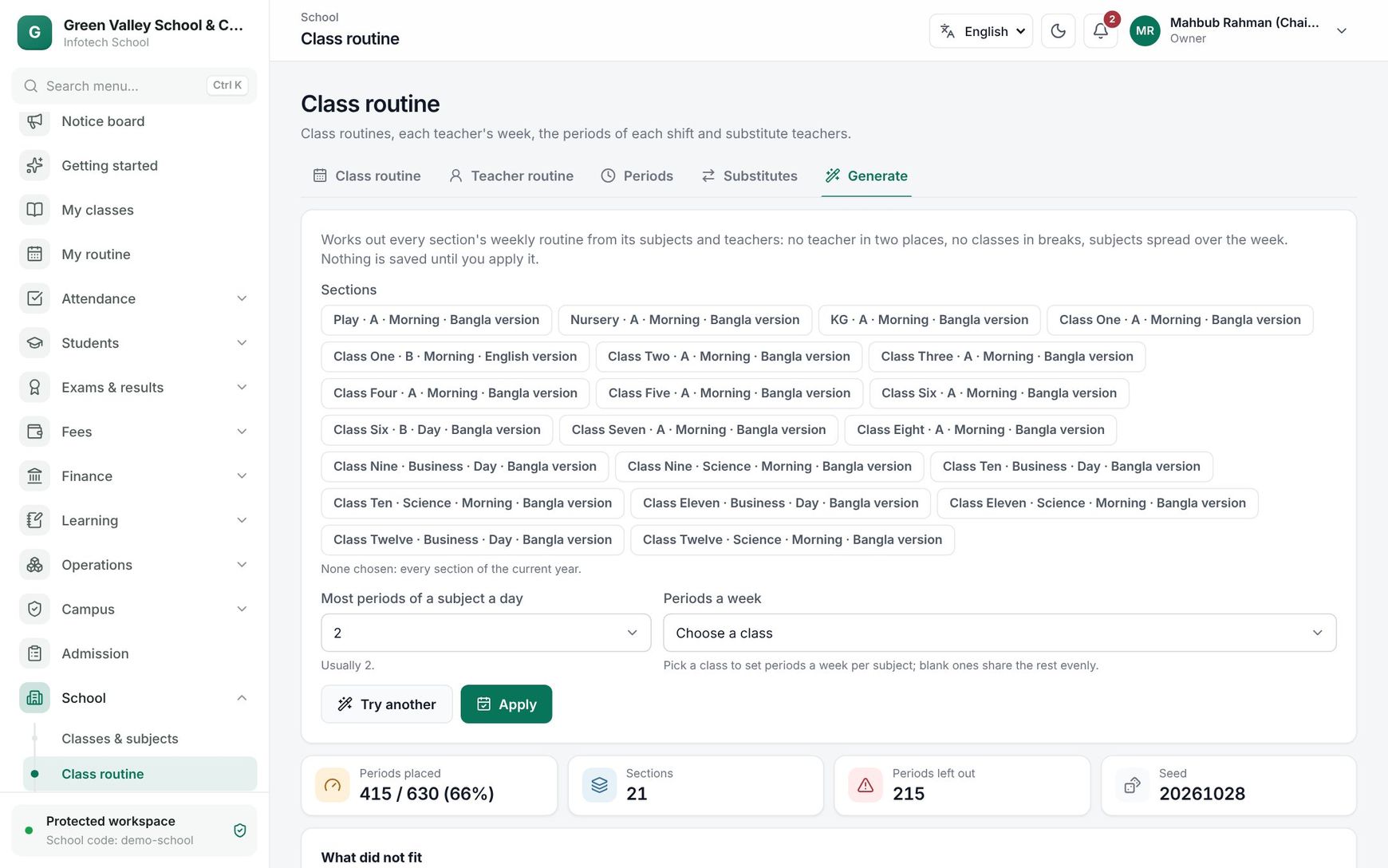 The Generate tab with the summary and a section's planned week
If you change any setting after a preview, the preview is cleared and you work out routines again.
What the generator respects
- A teacher is never in two places at once, also across shifts whose times overlap.
- Classes in sections you did not choose stay where they are. Their teachers are treated as busy at those times. So you can generate the Morning shift first and the Day shift later.
- No classes in breaks.
- At most the chosen number of periods of a subject per day.
- It tries to spread a subject over the week, avoid the same subject twice in a row, and keep any teacher's day from piling up. It makes several attempts and keeps the best.
Note: Applying replaces the whole routine of the chosen sections, including rooms you typed by hand. Classes you planned yourself in those sections are overwritten. Apply to a few sections first if you are unsure, and check them on the Class routine tab.
After applying, every change can be fine-tuned cell by cell on Class routine. Teachers' My routine and the teaching load update at once.
Examples
A new year at a two-shift school. The office leaves Sections empty, keeps 2 periods a day, and for Class Nine types Mathematics 6, English 6, Bangla 6 and leaves the rest Even. The preview places 1,188 of 1,200 periods. What did not fit shows "Class Nine · C · AGR · 2 periods, No teacher assigned". The office gives Agriculture a teacher in Classes & subjects, works out the routines again, gets every period placed, and applies.
Only the Day shift. Halfway through the year a teacher joins the Day shift. The office selects only the Day-shift sections (Class Six B, Seven B, Eight B) and applies. The Morning-shift routines are not touched, and teachers who teach in both shifts keep their Morning classes.
Last updated 30 Oct 2026