Exam hall: seat plans and admit cards
The Exam hall page prepares the exam days: the rooms with their seats and invigilators, a seat plan that places every student in a room and seat, and the admit cards to print for each section. On the admit card each student finds their room, seat and the exam routine.
Open Exams & results › Exam hall. It needs the Exams & results module. Anyone with exam:read can see seat plans and print admit cards; making a seat plan needs exam:manage (Owner, Principal, Office admin by default).
Choose the Year and the exam at the top (final results are not listed, since nobody sits them). The page has two tabs: Seat plan and Admit cards.
Make the seat plan
Before you start, the exam needs its classes (see Exams, papers and grading): every student of every section of those classes gets a seat.
- Open Seat plan. Under Rooms, a first room "Room 1" with 40 seats is already there.
- For each room fill in the Room name, the number of Seats and the Invigilator (a staff member, or Nobody). Add room adds another.
- Choose the Seating:
| Seating | How seats are filled |
|---|---|
| Mix classes | Classes take turns seat by seat, so neighbours write different papers (the usual practice against copying) |
| Class by class | One class after another, each in section and roll order |
- Check the line "320 seats for 305 students". The rooms must have at least as many seats as there are students.
- Choose Work out seats. The page says Seat plan ready.
Rooms are filled one after another, in the order you listed them. Room names must be unique; each room takes 1 to 500 seats, and you can add up to 100 rooms.
Working out the seats again replaces the plan, so you can change rooms and try again until it suits you.
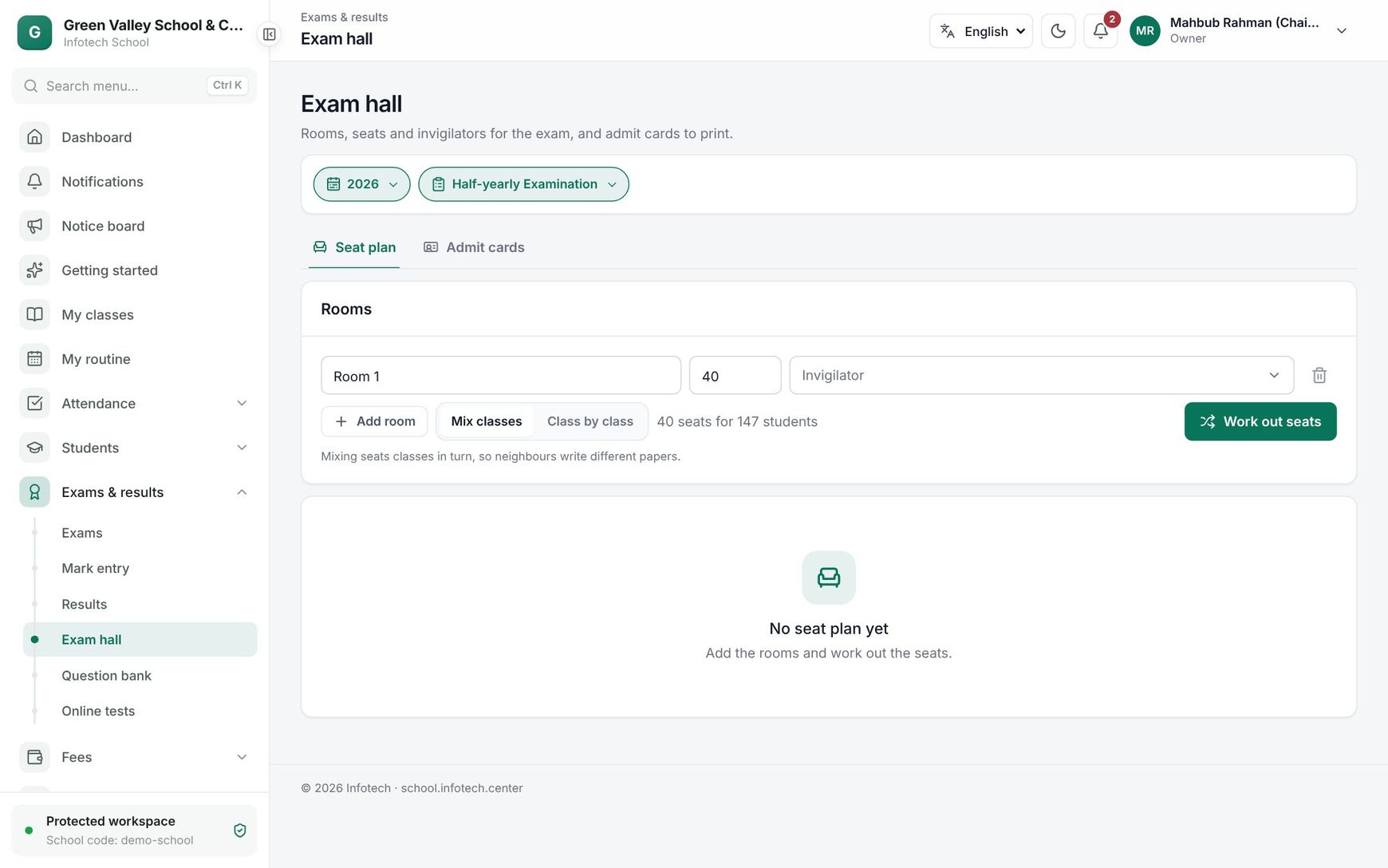 Rooms and invigilators on the seat plan tab
Read and print the seat plan
Below the rooms, the page shows "305 of 305 students seated" and one block per room with its name, "38/40 seats" and its Invigilators. Each room lists Seat, Student, Class and Roll.
Choose Print to print the plan, one room after another. Stick each room's page on the door and give the invigilator a copy.
If no plan exists yet, the tab says No seat plan yet: add the rooms and work out the seats.
Print admit cards
- Open Admit cards.
- Choose the class and the section.
- Check the cards on screen, then choose Print.
Each Admit card shows the exam and the year, the student's name, Student ID, Roll and Class, the Room and Seat (once the seat plan is made), and the exam routine of the section: Date, Time and Subject of each paper, with a line for the Head of institution to sign.
The routine comes from the date and time you set on each paper. Set them before printing.
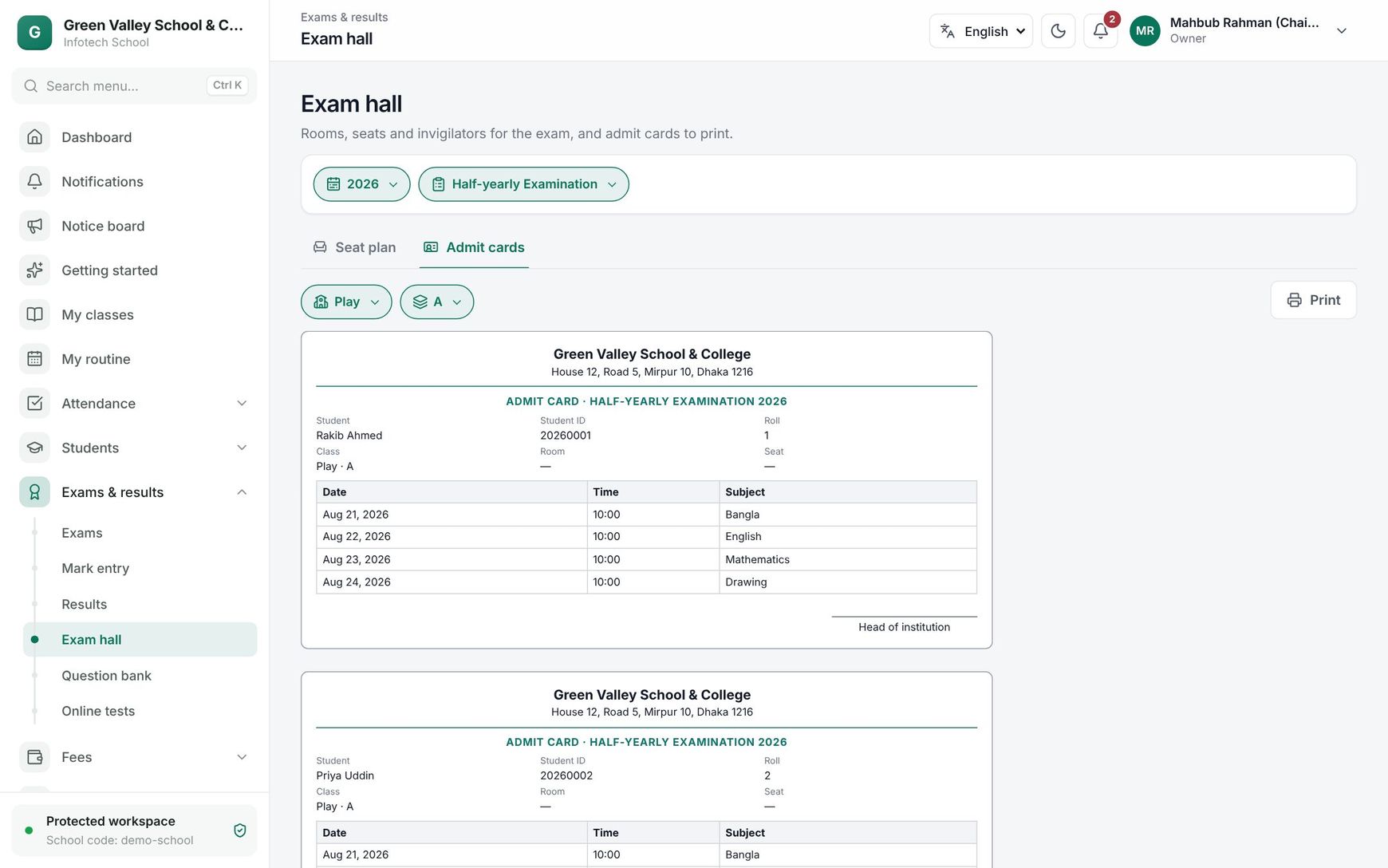 Admit cards of one section
Admit cards blocked for fee dues
If the school turned on Block admit cards when fees are overdue in Fee setup, a student with overdue fees gets no card. In its place is a red dashed box with the name, the roll and "Blocked: fees overdue" with the amount due. Once the dues are paid (see Fee invoices and collection), open the section again and the card is there to print.
Good to know
- Students are taken from the sections of the classes that sit the exam, in roll order.
- Work out the seats again after admitting or moving students, so new students get a seat.
- The seat plan only places students; it does not change marks or attendance.
Examples
Half-yearly with three rooms. The exam office of a school with Class Six to Class Eight (310 students) adds "Room 101" (110 seats, invigilator Shahana Akter), "Room 102" (110 seats, Mizanur Rahman) and "Hall" (100 seats, Faruk Ahmed), chooses Mix classes and Work out seats. A Class Six student sits next to a Class Seven student, then a Class Eight student. Too few seats? With only 300 seats, the page refuses: the rooms have fewer seats than students.
Admit cards with fee blocking. Before the annual exam, the accountant turns on blocking for overdue fees. When the office prints Class Nine A, three students' cards show "Blocked: fees overdue". Their guardians pay at the counter that afternoon, and the next morning the office opens Class Nine A again and prints their cards.
Last updated 30 Oct 2026